Introduction
Tutorial content is one of the most successful content categories on Pinterest.
People visit Pinterest specifically to learn how to do something, solve a problem, improve a skill, or follow a step-by-step process. This makes tutorial pins an incredibly powerful tool for driving traffic, generating engagement, and building authority.
Whether you’re a blogger, educator, coach, consultant, marketer, affiliate marketer, creator, or business owner, tutorial pins can help you reach users who are actively searching for solutions.
Adobe Express makes it easy to create professional Pinterest Tutorial Pins using:
- Pinterest-ready templates
- Brand Kits
- AI-powered design tools
- Adobe Stock assets
- Professional typography
- Fast export workflows
In this guide, you’ll learn how to create Pinterest Tutorial Pins using Adobe Express.
What Are Pinterest Tutorial Pins?
Tutorial Pins are Pinterest graphics designed to teach a process or explain how to complete a task.
Examples include:
How to Start a Blog
How to Create Pinterest Pins
How to Use Adobe Express
How to Improve SEO
How to Build an AI Agent
How to Create a Marketing Plan
The goal is to provide enough information to generate interest while encouraging users to click through for the full tutorial.
Why Tutorial Pins Perform Well
Pinterest users are actively looking for educational content.
Benefits include:
High Search Intent
Users want answers.
Strong Click-Through Rates
People often need the complete tutorial.
Evergreen Traffic
Tutorials remain useful for years.
Increased Authority
Educational content builds trust.
Better Content Repurposing
One tutorial can produce multiple pins.
Tutorial Pins often outperform purely promotional content.
Best Tutorial Topics for Pinterest
Popular tutorial categories include:
Marketing
Blogging
SEO
Design
Business
Productivity
AI Tools
Adobe Express
Social Media
Personal Finance
DIY Projects
Home Organization
Choose topics where people actively seek guidance.
Recommended Pinterest Tutorial Pin Size
Pinterest recommends:
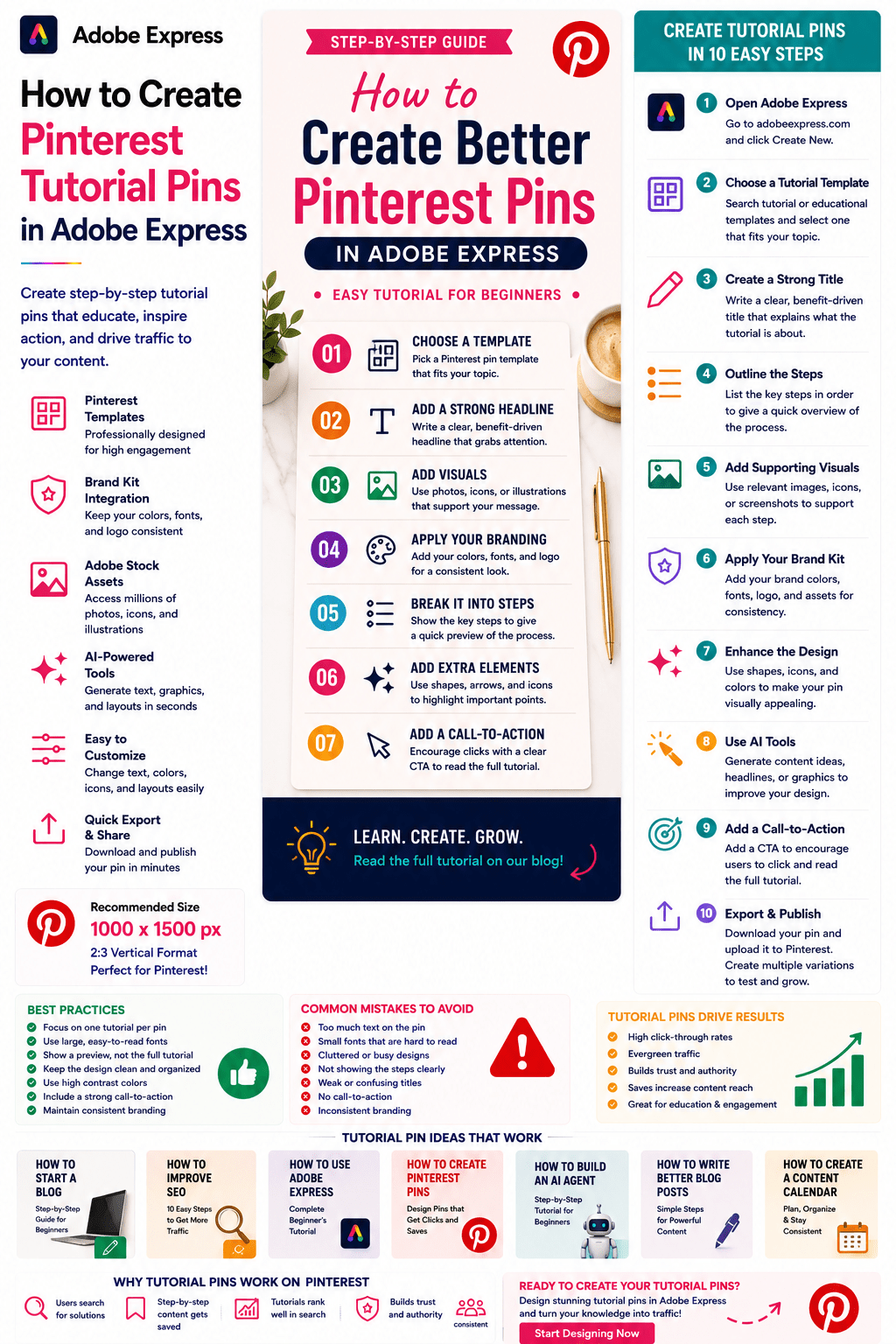
1000 × 1500 Pixels
2:3 Vertical Format
Adobe Express includes templates optimized for Pinterest.
Step 1: Open Adobe Express
Sign in to Adobe Express.
From the dashboard:
Click Create New
or
Search Pinterest Templates
Adobe Express offers many educational layouts.
Step 2: Choose a Tutorial Template
Browse categories such as:
Education
Business
Marketing
How-To
Productivity
Learning
Templates provide a professional starting point.
Step 3: Create a Strong Tutorial Title
The title is the most important element.
Examples:
How to Create Better Pinterest Pins
How to Launch Your First Website
How to Build an AI Workflow
How to Improve SEO in 10 Steps
How to Use Adobe Express for Marketing
Your title should clearly communicate the benefit.
Step 4: Highlight the Steps
Users should immediately see that the content is educational.
Examples:
Step 1
Step 2
Step 3
Step-by-Step Guide
Complete Tutorial
Visual indicators improve engagement.
Step 5: Use Educational Visuals
Choose visuals that support the tutorial.
Examples:
Screenshots
Process Diagrams
Icons
Adobe Stock Images
Before-and-After Examples
Workflow Illustrations
Visuals should reinforce learning.
Step 6: Apply Your Brand Kit
Adobe Express Brand Kits simplify consistency.
Apply:
Brand Colors
Brand Fonts
Logos
Design Elements
Consistent branding builds recognition.
Step 7: Add a Preview of the Process
Instead of revealing everything, provide a glimpse.
Examples:
3 of the 10 Steps
Key Takeaways
Workflow Overview
Checklist Preview
This encourages clicks.
Step 8: Use Adobe Express AI Features
Adobe Express AI tools can generate:
Tutorial Headlines
Visual Concepts
Graphics
Layout Variations
Educational Content Ideas
AI can significantly reduce production time.
Step 9: Add a Call-to-Action
Examples:
Read the Full Tutorial
Learn More
Get the Complete Guide
Follow the Step-by-Step Process
Visit Our Website
A CTA encourages traffic.
Step 10: Export and Publish
When complete:
Save Project
Download Tutorial Pin
Create Variations
Upload to Pinterest
Your Tutorial Pin is ready.
Creating Blogging Tutorial Pins
Examples:
How to Start a Blog
How to Write Better Articles
How to Grow Website Traffic
How to Monetize a Blog
Blogging tutorials perform extremely well.
Creating Marketing Tutorial Pins
Examples:
How to Build a Content Calendar
How to Create Social Media Campaigns
How to Generate Leads
How to Improve Email Marketing
Marketing content remains highly searchable.
Creating SEO Tutorial Pins
Examples:
How to Perform Keyword Research
How to Optimize a Blog Post
How to Build Internal Links
How to Improve Search Rankings
SEO content generates evergreen traffic.
Creating AI Tutorial Pins
Examples:
How to Build AI Agents
How to Use ChatGPT
How to Create AI Workflows
How to Implement RAG
AI tutorials are increasingly popular on Pinterest.
Creating Adobe Express Tutorial Pins
Examples:
How to Create Pinterest Pins
How to Design Social Media Posts
How to Build a Brand Kit
How to Create Marketing Graphics
Perfect for Adobe Express-focused websites.
Best Practices for Tutorial Pins
Focus on One Process
Avoid covering multiple topics.
Use Clear Titles
Immediately communicate value.
Show Steps Visually
Improve comprehension.
Maintain Brand Consistency
Build recognition.
Include a CTA
Drive traffic to the full tutorial.
These practices improve results.
Common Tutorial Pin Mistakes
Too Much Information
Overwhelms users.
Weak Title
Reduces click-through rates.
Small Text
Difficult to read on mobile devices.
Poor Visual Structure
Makes the tutorial confusing.
No CTA
Misses traffic opportunities.
Avoiding these mistakes improves performance.
Example Workflow
Imagine promoting a tutorial.
Tutorial
How to Create Pinterest Pins in Adobe Express
Preview
Step 1: Choose a Template
Step 2: Add Branding
Step 3: Create a Headline
CTA
Read the Complete Guide
This structure works exceptionally well on Pinterest.
Why Adobe Express Is Ideal for Tutorial Pins
Adobe Express combines:
Professional Templates
Brand Management
AI Design Tools
Easy Editing
Fast Export
Pinterest-Friendly Layouts
This makes it one of the easiest tools for creating educational Pinterest content.
Conclusion
Pinterest Tutorial Pins are among the most effective content formats for driving traffic, building authority, and educating audiences.
By combining templates, Brand Kits, AI-powered tools, and streamlined workflows, Adobe Express enables creators and businesses to create professional tutorial pins quickly and consistently.
Whether you’re teaching marketing, blogging, SEO, AI, design, or productivity skills, Adobe Express provides everything needed to create high-performing Pinterest Tutorial Pins.
Continue Learning Adobe Express
To learn more about Pinterest content creation, explore these guides:
- How to Create Pinterest Pins in Adobe Express
- How to Create Pinterest Checklist Pins in Adobe Express
- How to Create Pinterest Quote Pins in Adobe Express
For advanced marketing workflows, also read:
- Adobe Express Content Calendars: The Complete Guide
- Adobe Express Marketing Automation: The Complete Guide
- Adobe Express Workflow Automation: The Complete Guide








