Templates are one of the most powerful features in Adobe Express.
Instead of starting with a blank canvas every time, templates provide professionally designed layouts that can be customized in minutes.
Whether you’re creating:
- Social media posts
- Marketing graphics
- Presentations
- Flyers
- Posters
- Videos
- Educational materials
- Business communications
templates help you work faster while maintaining a professional appearance.
In this guide, you’ll learn how to find, select, customize, and use templates effectively in Adobe Express.
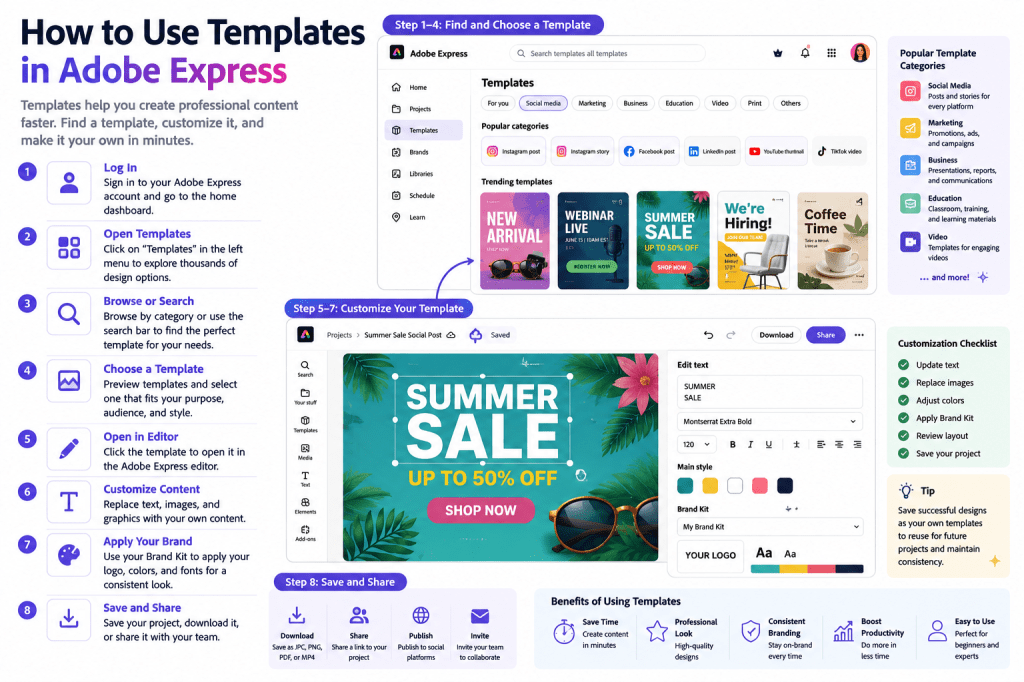
What Are Adobe Express Templates?
Templates are pre-designed content layouts created for specific purposes.
Think of them as starting points.
A template already contains:
Layout Structure
Professional design arrangements.
Typography
Pre-selected fonts and text placement.
Graphics
Visual elements and placeholders.
Color Schemes
Coordinated design palettes.
Content Areas
Spaces for your own text and images.
Instead of building everything from scratch, you simply customize the template.
Why Use Templates?
Templates offer several advantages.
Save Time
Start with an existing design.
Improve Design Quality
Use professionally created layouts.
Maintain Consistency
Create content that follows a common style.
Increase Productivity
Produce more content in less time.
Reduce Design Experience Requirements
Templates help beginners create professional results.
For most users, templates are the fastest path to high-quality content.
Types of Templates Available
Adobe Express provides templates for many content categories.
Social Media Templates
Examples include:
- LinkedIn posts
- Instagram posts
- Instagram stories
- Facebook posts
- Pinterest pins
- X graphics
These templates are optimized for platform dimensions.
Marketing Templates
Examples include:
- Promotional graphics
- Product launch materials
- Event advertisements
- Lead generation assets
- Campaign visuals
Marketing teams often rely heavily on templates.
Business Templates
Examples include:
- Presentations
- Reports
- Announcements
- Internal communications
- Corporate graphics
These templates support professional communication.
Educational Templates
Examples include:
- Classroom presentations
- Worksheets
- Infographics
- Learning materials
- Training resources
Educators can create content quickly without design expertise.
Video Templates
Adobe Express also provides templates for:
- Marketing videos
- Social videos
- Product demonstrations
- Training videos
Video templates simplify content production.
Step 1: Log In to Adobe Express
Begin by signing in to your Adobe Express account.
Once logged in:
- Navigate to the dashboard.
- Locate the Templates section.
- Open the template library.
You now have access to thousands of design options.
Step 2: Browse Templates
You can browse by category.
Examples include:
Social Media
Content for social platforms.
Marketing
Promotional materials.
Education
Learning resources.
Business
Professional communications.
Video
Video creation templates.
Browsing categories helps narrow your search.
Step 3: Use the Search Feature
The search tool is one of the fastest ways to find templates.
Examples:
LinkedIn Post
Find professional social media templates.
Webinar Promotion
Discover event marketing layouts.
Employee Onboarding
Locate HR-focused designs.
Product Launch
Find campaign assets.
Search results often provide highly relevant options.
Step 4: Choose a Template
When evaluating templates, consider:
Audience
Who will see the content?
Purpose
What action should the audience take?
Branding
Does the style fit your organization?
Content Requirements
Can it accommodate your message?
Select a template that aligns with your goals.
Step 5: Open the Template
Click the template to open it in the Adobe Express editor.
The editor allows you to customize every element.
Examples include:
- Text
- Images
- Colors
- Layouts
- Icons
- Graphics
The template becomes your starting point.
Step 6: Replace Placeholder Text
Templates often contain sample text.
Replace it with your own content.
Examples include:
Headlines
Your main message.
Descriptions
Supporting information.
Calls to Action
Encourage engagement.
Contact Information
Business details.
Personalized text makes the template your own.
Step 7: Replace Images
Most templates include placeholder images.
You can:
Upload Your Own Photos
Custom visuals.
Use Adobe Assets
Stock content.
Insert Product Images
Marketing materials.
Add Team Photos
Internal communications.
Relevant visuals improve effectiveness.
Step 8: Apply Your Brand Kit
If you use Adobe Express Premium, Brand Kits can dramatically speed up customization.
Brand Kits can automatically apply:
Logos
Company branding.
Colors
Brand-approved palettes.
Fonts
Standard typography.
Design Elements
Reusable assets.
This helps maintain consistency across all content.
Step 9: Customize the Design
Templates are flexible.
You can modify:
Colors
Match brand guidelines.
Layouts
Adjust content placement.
Typography
Improve readability.
Graphics
Add supporting visuals.
Templates are meant to be customized, not used unchanged.
Step 10: Save Your Project
Once satisfied:
- Save the project.
- Give it a meaningful name.
- Store it in your project library.
Your customized template is now available for future use.
When to Use Templates
Templates are ideal when:
Speed Matters
Create content quickly.
Consistency Is Important
Maintain brand standards.
Design Resources Are Limited
Reduce creative effort.
Teams Need Standardization
Support collaboration.
Templates are often the best choice for recurring content.
When Not to Use Templates
Templates may be less suitable when:
Highly Unique Designs Are Needed
Custom projects.
Complex Branding Requirements Exist
Advanced customization.
Specialized Layouts Are Required
Unique formats.
In these cases, a custom design may be preferable.
Template Best Practices
Start With the Closest Match
Reduce editing effort.
Apply Brand Kits Early
Maintain consistency.
Keep Layouts Simple
Improve readability.
Customize Images
Avoid generic content.
Save Successful Designs
Create reusable assets.
These habits improve results.
Common Template Mistakes
Leaving Placeholder Text
Looks unprofessional.
Ignoring Branding
Creates inconsistency.
Over-Customizing
Can reduce design quality.
Using the Wrong Template
Creates unnecessary work.
Not Saving Reusable Versions
Missed productivity opportunity.
Avoiding these mistakes improves efficiency.
Example Workflow
Imagine you’re creating a LinkedIn post.
Step 1
Search for LinkedIn templates.
Step 2
Select a design.
Step 3
Replace text.
Step 4
Update images.
Step 5
Apply Brand Kit.
Step 6
Save and publish.
Within minutes, you have professional content ready to share.
Benefits of Templates for Teams
Organizations often gain significant advantages.
Faster Production
Less design work.
Consistent Branding
Standardized visuals.
Easier Collaboration
Shared design structures.
Lower Training Requirements
Templates simplify creation.
Improved Productivity
Create more content with fewer resources.
These benefits scale across departments.
Conclusion
Templates are one of the fastest and easiest ways to create professional content in Adobe Express.
By starting with professionally designed layouts, customizing them with your own content, and applying Brand Kits for consistency, you can dramatically reduce design time while improving quality.
Whether you’re creating social media graphics, marketing campaigns, business communications, educational materials, or videos, templates provide a powerful foundation for efficient content creation.
Mastering templates is one of the most valuable Adobe Express skills you can develop.
Continue Learning Adobe Express
To learn more about building efficient content systems, explore these guides:
- Adobe Express Content Creation: The Complete Guide
- Adobe Express Visual Communication: The Complete Guide
- Adobe Express Business Productivity: The Complete Guide
If you’re creating content at scale, also read:
- Adobe Express Team Collaboration: The Complete Guide
- Adobe Express Workflow Automation: The Complete Guide
- Adobe Express Content Operations: The Complete Guide







 Acrobat Express Pro