Your LinkedIn banner is one of the most valuable pieces of visual real estate on your LinkedIn profile.
Whether you’re a consultant, freelancer, executive, recruiter, entrepreneur, marketer, educator, or business owner, your banner provides an opportunity to communicate who you are, what you do, and why someone should connect with you.
Unfortunately, many LinkedIn users leave the default banner in place, missing a powerful branding opportunity.
Adobe Express makes it easy to create professional LinkedIn banners using:
- LinkedIn banner templates
- Brand Kits
- AI-powered design tools
- Adobe Stock assets
- Professional typography
- Easy resizing and export
In this guide, you’ll learn how to create LinkedIn banners using Adobe Express.
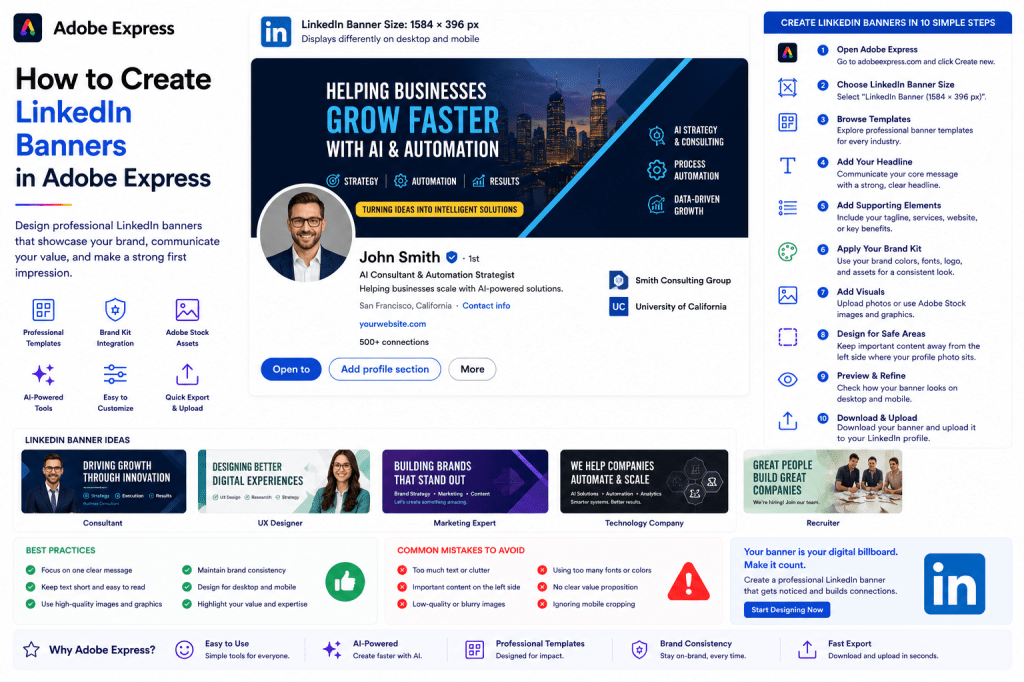
Why LinkedIn Banners Matter
Your banner is often one of the first things visitors notice.
A professional banner can:
Strengthen Personal Branding
Showcase expertise immediately.
Build Credibility
Appear more professional.
Communicate Value
Explain what you do.
Support Lead Generation
Highlight services and offers.
Improve Profile Appearance
Create a polished first impression.
Think of your LinkedIn banner as your personal billboard.
LinkedIn Banner Dimensions
For personal profiles, LinkedIn recommends:
1584 × 396 Pixels
This wide format works across desktop and mobile devices.
Adobe Express provides LinkedIn banner templates already sized correctly.
Types of LinkedIn Banners
Different professionals use different banner styles.
Examples include:
Personal Brand Banner
Showcase expertise.
Consultant Banner
Promote services.
Company Banner
Highlight products and solutions.
Recruiter Banner
Promote hiring opportunities.
Educator Banner
Showcase courses and training.
Speaker Banner
Promote speaking engagements.
Choose a style that supports your goals.
Step 1: Open Adobe Express
Sign in to Adobe Express.
From the dashboard:
Click Create New
or
Search LinkedIn Banner Templates
Adobe Express includes numerous banner layouts.
Step 2: Choose a Banner Template
Browse categories such as:
Business
Consulting
Marketing
Technology
Coaching
Education
Entrepreneurship
Templates provide a professional starting point.
Step 3: Define Your Core Message
Ask yourself:
What do I want visitors to remember?
Examples:
Helping Companies Scale with AI
UX Design for SaaS Startups
Data-Driven Marketing Solutions
Leadership Coaching for Executives
Focus on one clear message.Step 4: Add Your Headline
Examples:
AI Consultant & Automation Strategist
Helping Businesses Grow Through Data
UX Designer for Modern SaaS Products
Building Better Teams Through Leadership
Keep headlines concise and impactful.
Step 5: Add Supporting Elements
Consider including:
Website URL
Company Name
Service Categories
Certifications
Tagline
Social Proof
Supporting information adds credibility
Step 6: Apply Your Brand Kit
Adobe Express Brand Kits make branding simple.
Apply:
Brand Colors
Brand Fonts
Logos
Graphic Assets
Consistency strengthens recognition.
Step 7: Use Professional Visuals
Options include:
Professional Headshots
Team Photography
Adobe Stock Images
Abstract Backgrounds
Industry Graphics
AI-Generated Visuals
Avoid cluttered visuals.
Step 8: Design Around LinkedIn’s Profile Photo
LinkedIn overlays the profile picture on the left side of the banner.
Keep important content:
Centered
Right-Aligned
Away From the Profile Image Area
Always preview before publishing.
Step 9: Use Adobe Express AI Features
Adobe Express AI tools can help generate:
Banner Headlines
Marketing Copy
Background Images
Custom Graphics
Brand Concepts
AI speeds up the design process considerably.
Step 10: Export and Upload
Once complete:
Save Project
Download Banner
Duplicate for Variations
Upload to LinkedIn
Your LinkedIn banner is ready.
Personal Branding Banner Ideas
Examples:
Industry Expert
Highlight expertise.
Author
Promote books.
Speaker
Promote events.
Consultant
Promote services.
Creator
Promote content.
Personal branding banners help establish authority.
Consultant Banner Ideas
Include:
Service Offerings
Client Outcomes
Website URL
Professional Photo
Call-to-Action
Keep messaging results-focused.
Company Banner Ideas
Include:
Logo
Tagline
Key Services
Website
Industry Positioning
Focus on communicating value.
Recruiter Banner Ideas
Highlight:
Hiring Opportunities
Company Culture
Team Values
Open Positions
Career Growth
Recruitment banners attract talent.
Best Practices for LinkedIn Banners
Focus on One Message
Avoid multiple competing ideas.Keep Text Minimal
Easy to scan.
Use Professional Fonts
Improve readability.
Maintain Brand Consistency
Strengthen recognition.
Design for Desktop and Mobile
Ensure visibility across devices.
These practices improve effectiveness.
Common LinkedIn Banner Mistake
Too Much Text
Creates visual clutter.
Poor Image Quality
Appears unprofessional.
Weak Branding
Reduces recognition.
Ignoring Profile Photo Placement
Can hide important content.
No Clear Value Proposition
Misses an opportunity to communicate expertise.
Avoiding these mistakes improves results.
Example Workflow
Imagine an AI consultant building a banner.
Step 1
Choose a LinkedIn banner template.
Step 2
Apply Brand Kit.
Step 3
Add headline:
“Helping Businesses Automate with AI”
Step 4
Upload professional headshot.
Step 5
Add website URL.
Step 6
Review profile photo overlap.
Step 7
Export.
Step 8
Upload to LinkedIn.
The process often takes less than 15 minutes.
Why Adobe Express Is Ideal for LinkedIn Banners
Adobe Express combines:
Professional Templates
Brand Kits
AI Design Tools
Easy Editing
Fast Export
This makes it an excellent platform for LinkedIn banner creation.
Conclusion
A professional LinkedIn banner helps strengthen your personal brand, communicate expertise, and create a strong first impression.
By combining templates, Brand Kits, AI-powered tools, and streamlined workflows, Adobe Express makes it easy to design banners that support professional growth and visibility.
Whether you’re building a personal brand, promoting a business, recruiting talent, or showcasing services, Adobe Express provides everything needed to create effective LinkedIn banners.
Continue Learning Adobe Express
To learn more about LinkedIn content creation, explore these guides:
- How to Create LinkedIn Posts in Adobe Express
- How to Create LinkedIn Carousel Posts in Adobe Express
- Adobe Express for LinkedIn Marketing: The Complete Guide
For advanced workflows, also read:
- Adobe Express Brand Management: The Complete Guide
- Adobe Express Content Calendars: The Complete Guide
- Adobe Express Marketing Automation: The Complete Guide







 Acrobat Express Pro