LinkedIn is one of the most powerful recruiting platforms in the world.
Whether you’re hiring software engineers, designers, marketers, project managers, sales professionals, or executives, visually appealing recruitment graphics can significantly increase visibility and attract better candidates.
A professional recruitment graphic helps your job opportunity stand out in a crowded LinkedIn feed and communicates your company culture, benefits, and employer brand.
Adobe Express makes it easy to create recruitment graphics using:
- LinkedIn-ready templates
- Brand Kits
- AI-powered design tools
- Adobe Stock assets
- Professional typography
- Fast export workflows
In this guide, you’ll learn how to create LinkedIn recruitment graphics using Adobe Express.
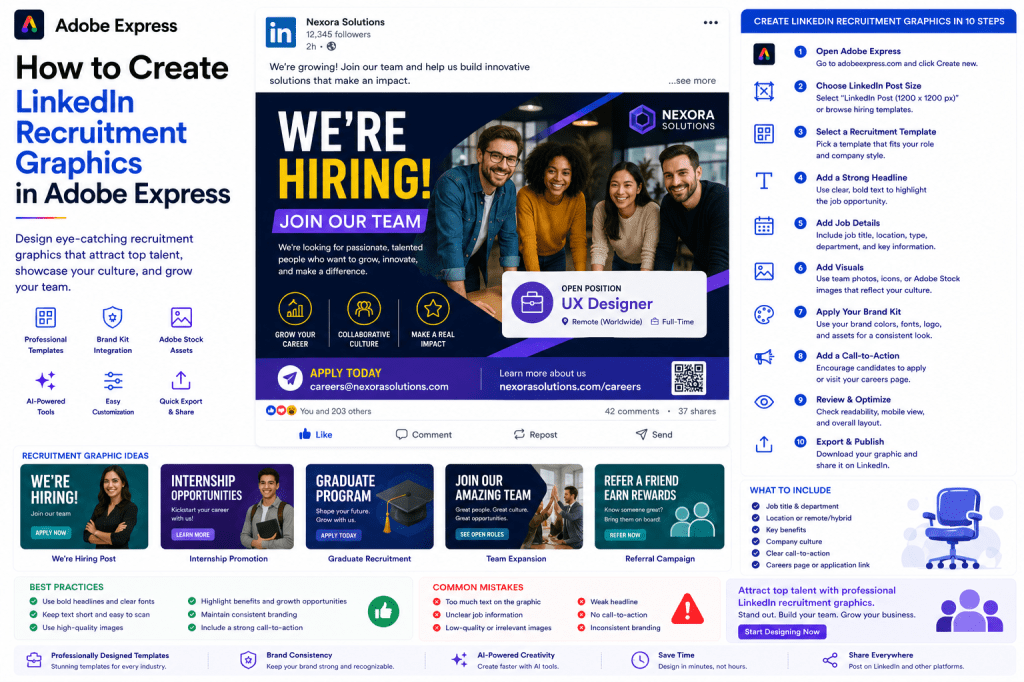
Why Recruitment Graphics Matter
Many LinkedIn users scroll past standard hiring posts.
Strong recruitment graphics help:
Increase Visibility
Capture attention immediately.
Attract Better Candidates
Present opportunities professionally.
Strengthen Employer Branding
Showcase company culture.
Improve Engagement
Encourage shares and comments.
Increase Applications
Drive more qualified candidates to apply.
Visual hiring posts often outperform text-only job announcements.
Types of Recruitment Graphics
Adobe Express supports many hiring-related formats.
Examples include:
We’re Hiring Posts
Job Vacancy Announcements
Graduate Recruitment Campaigns
Internship Promotions
Team Expansion Announcements
Recruitment Events
Employee Referral Campaigns
Employer Branding Content
Different goals require different designs.
Step 1: Open Adobe Express
Sign in to Adobe Express.
From the dashboard:
Click Create New
or
Search Hiring Templates
Adobe Express provides numerous recruitment-focused layouts.
Step 2: Select a Recruitment Template
Browse categories such as:
Corporate Hiring
Startup Recruitment
Technology Jobs
Marketing Positions
Graduate Programs
Internship Campaigns
Templates accelerate design creation.
Step 3: Identify the Position
Clearly communicate the role.
Examples:
Senior Software Engineer
UX Designer
Marketing Manager
Data Analyst
Customer Success Specialist
Sales Executive
The position should be immediately visible.
Step 4: Create a Strong Headline
Examples:
We’re Hiring!
Join Our Team
Your Next Career Move Starts Here
Build the Future With Us
Looking for Exceptional Talent
The headline should encourage attention and curiosity.
Step 5: Include Key Job Information
Candidates should quickly understand:
Position Title
Location
Remote or Hybrid Status
Department
Employment Type
Application Deadline
Keep details concise and easy to scan.
Step 6: Add Company Branding
Apply:
Company Logo
Brand Colors
Brand Fonts
Visual Style
Strong branding improves credibility.
Step 7: Showcase Company Culture
Many candidates evaluate employers before applying.
Include:
Team Photos
Office Images
Employee Spotlights
Company Values
Workplace Benefits
Culture often influences applications.
Step 8: Use Adobe Express AI Features
Adobe Express AI tools can accelerate hiring content.
Examples:
Generate Recruitment Headlines
Create Job Promotion Copy
Generate Graphics
Remove Backgrounds
Enhance Images
AI tools reduce content creation time.
Step 9: Add a Clear Call-to-Action
Examples:
Apply Today
Submit Your Resume
Join Our Team
Learn More
Start Your Next Career Move
A CTA helps drive applications.
Step 10: Export and Publish
Once complete:
Save Project
Download Graphic
Duplicate Design
Publish on LinkedIn
Share Across Social Platforms
Your recruitment graphic is ready.
Creating “We’re Hiring” Graphics
One of the most common formats.
Include:
Job Title
Company Logo
Key Benefits
CTA
Website or Careers Page
Simple designs often perform best.
Creating Internship Recruitment Graphics
Internship promotions should highlight:
Learning Opportunities
Mentorship
Career Growth
Duration
Application Process
Students respond well to growth-focused messaging.
Creating Graduate Recruitment Graphics
Graduate campaigns often emphasize:
Career Development
Training Programs
Industry Exposure
Mentorship
Future Opportunities
Focus on long-term benefits.
Creating Employer Branding Graphics
Not every recruitment post needs a vacancy.
Examples:
Employee Spotlights
Team Achievements
Workplace Culture
Office Events
Company Values
These posts help build talent pipelines.
Creating Recruitment Event Graphics
Promote:
Career Fairs
Hiring Days
Virtual Recruitment Events
Meet-the-Team Sessions
Graduate Open Days
Include clear event details and registration information.
Best Practices for Recruitment Graphics
Make the Position Obvious
Job title should stand out.
Keep Information Concise
Avoid clutter.
Use Real Team Photos
Authenticity builds trust.
Maintain Consistent Branding
Strengthens employer identityInclude a Strong CTA
Encourage applications.
These practices improve hiring results.
Common Recruitment Graphic Mistakes
Too Much Text
Reduces readability.
Missing Job Information
Creates confusion.
Weak Branding
Reduces credibility.
Low-Quality Images
Looks unprofessional.
No CTA
Misses application opportunities.
Avoiding these mistakes improves performance.
Example Workflow
Imagine hiring a UX Designer.
Step 1
Choose a hiring template.
Step 2
Apply Brand Kit.
Step 3
Add headline:
“We’re Hiring a UX Designer”
Step 4
Insert team photo.
Step 5
Add benefits.
Step 6
Include application link.
Step 7
Review mobile layout.
Step 8
Export.
Step 9
Publish on LinkedIn.
The process often takes less than 15 minutes.
Why Adobe Express Is Ideal for Recruitment Graphics
Adobe Express combines:
Professional Templates
Brand Management
AI Design Tools
Easy Editing
Fast Publishing
This makes it an excellent platform for recruiting content.
Conclusion
LinkedIn recruitment graphics help organizations attract talent, strengthen employer branding, and increase application rates.
By combining templates, Brand Kits, AI-powered tools, and streamlined workflows, Adobe Express enables HR teams, recruiters, and hiring managers to create professional recruitment content quickly and consistently.
Whether you’re hiring for a single role or running large-scale recruitment campaigns, Adobe Express provides everything needed to create effective hiring graphics.
Continue Learning Adobe Express
To learn more about LinkedIn content creation, explore these guides:
- How to Create LinkedIn Posts in Adobe Express
- How to Create LinkedIn Company Page Graphics in Adobe Express
- How to Create LinkedIn Event Graphics in Adobe Express
For advanced business workflows, also read:
- Adobe Express for HR Teams: The Complete Guide
- Adobe Express Team Collaboration: The Complete Guide
- Adobe Express Brand Management: The Complete Guide







 Acrobat Express Pro