LinkedIn has become one of the most effective platforms for promoting professional events, webinars, workshops, conferences, networking sessions, product launches, and virtual meetups.
A well-designed LinkedIn event graphic helps attract attention, communicate important details, and increase registrations.
Whether you’re promoting a company webinar, industry conference, educational workshop, or networking event, professional graphics can dramatically improve visibility and engagement.
Adobe Express makes event design simple by providing:
- LinkedIn-ready event templates
- Brand Kits
- AI-powered design tools
- Adobe Stock images
- Professional typography
- Fast export workflows
In this guide, you’ll learn how to create LinkedIn event graphics using Adobe Express.
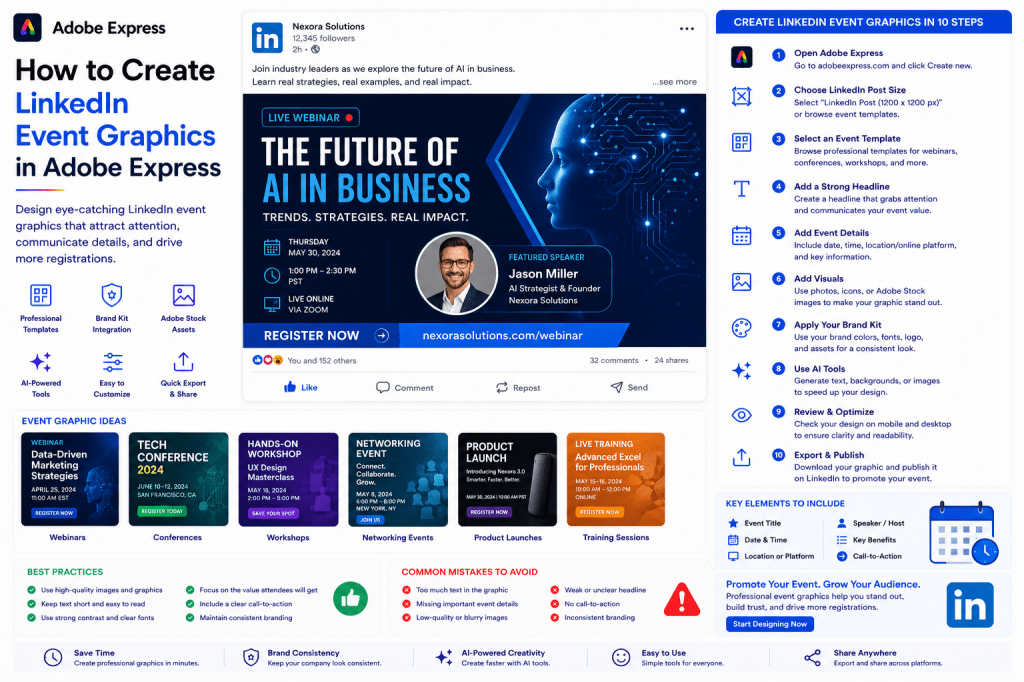
Why LinkedIn Event Graphics Matter
Professionals scrolling through LinkedIn are exposed to a large amount of content every day.
Strong event graphics help:
Capture Attention
Stand out in crowded feeds.
Increase Registrations
Encourage people to sign up.
Build Credibility
Professional design increases trust.
Communicate Key Details
Deliver important information quickly.
Improve Sharing
Well-designed graphics are more likely to be reposted.
Visuals often determine whether users stop scrolling.
Types of LinkedIn Events You Can Promote
Adobe Express supports a wide variety of event formats.
Examples include:
Webinars
Conferences
Workshops
Networking Events
Product Launches
Training Sessions
Live Demonstrations
Recruiting Events
Industry Panels
Virtual Summits
Choose a design that matches your audience and objective.
Step 1: Open Adobe Express
Sign in to Adobe Express.
From the dashboard:
Click Create New
or
Search Event Templates
Adobe Express offers many event-focused layouts.
Step 2: Choose a LinkedIn Event Template
Browse templates by category.
Examples:
Business Events
Marketing Events
Technology Events
Educational Events
Recruiting Events
Professional Networking
Templates help speed up creation.
Step 3: Define Your Event Goal
Determine what action you want users to take.
Examples:
Register
Attend
Learn More
Save the Date
Join Live
A clear goal improves effectiveness.
Step 4: Add a Strong Event Headline
Examples:
The Future of AI in Business
Annual Marketing Summit 2026
Cybersecurity Best Practices Workshop
Product Launch Live Event
The headline should immediately communicate value.
Step 5: Include Essential Event Information
Most event graphics should include:
Event Name
Date
Time
Speaker
Location or Platform
Registration Information
Keep information concise and easy to scan.
Step 6: Add Visual Elements
Strong visuals increase engagement.
Options include:
Speaker Photos
Team Images
Adobe Stock Images
Industry Graphics
Product Visuals
AI-Generated Artwork
Choose visuals relevant to the event.
Step 7: Apply Your Brand Kit
Adobe Express Brand Kits simplify branding.
Apply:
Brand Colors
Brand Fonts
Company Logo
Graphic Elements
Consistent branding builds recognition.
Step 8: Use Adobe Express AI Features
Adobe Express AI tools can accelerate design.
Examples:
Generate Headlines
Create Event Descriptions
Generate Images
Remove Backgrounds
Expand Images
AI tools can significantly reduce design time.
Step 9: Add a Call-to-Action
Encourage users to take action.
Examples:
Register Now
Save Your Seat
Reserve Your Spot
Learn More
Join the Event
A strong CTA improves conversion rates.
Step 10: Export and Publish
When your design is complete:
Save Project
Download Graphic
Duplicate Design
Publish on LinkedIn
Add to Event Page
Your event graphic is ready.
Creating Webinar Graphics
Webinars are among the most popular LinkedIn events.
Include:
Topic
Speaker
Date and Time
Key Benefits
Registration CTA
Educational value should be emphasized.
Creating Conference Graphics
Conference graphics often include:
Conference Name
Event Dates
Speakers
Location
Registration Information
Professional branding is especially important.
Creating Workshop Graphics
Workshop promotions should highlight:
Skills Learned
Duration
Instructor
Audience
Outcomes
Focus on practical value.
Creating Networking Event Graphics
Networking graphics often include:
Event Theme
Industry Focus
Date and Time
Location
Attendee Benefits
Keep the design welcoming and professional.
Creating Product Launch Event Graphics
Include:
Product Name
Launch Date
Key Features
Demo Information
Registration CTA
Build anticipation and excitement.
Best Practices for LinkedIn Event Graphics
Focus on One Message
Avoid clutter.
Make Details Easy to Read
Prioritize readability.
Use Professional Visuals
Build credibility.
Stay Consistent with Branding
Improve recognition.
Include a Strong CTA
Drive registrations.
These practices improve performance.
Common Event Graphic Mistakes
Too Much Text
Overwhelms viewers.
Missing Event Details
Creates confusion.
Weak Headline
Reduces engagement.
Poor Visual Quality
Looks unprofessional.
No CTA
Lowers registration rates.
Avoiding these mistakes improves results.
Example Workflow
Imagine promoting a webinar:
Step 1
Choose a LinkedIn event template.
Step 2
Apply Brand Kit.
Step 3
Upload speaker photo.
Step 4
Add event title.
Step 5
Insert date and time.
Step 6
Add registration CTA.
Step 7
Review mobile layout.
Step 8
Export.
Step 9
Publish on LinkedIn.
The process often takes less than 15 minutes.
Why Adobe Express Is Ideal for Event Promotion
Adobe Express combines:
Professional Templates
Brand Management
AI Design Tools
Easy Editing
Fast Publishing
This makes it one of the easiest tools for creating LinkedIn event graphics.
Conclusion
LinkedIn event graphics help businesses, educators, consultants, and organizations attract attendees, build credibility, and increase event visibility.
By combining templates, Brand Kits, AI-powered tools, and streamlined workflows, Adobe Express enables professionals to create high-quality event graphics quickly and consistently.
Whether you’re promoting webinars, conferences, workshops, or networking events, Adobe Express provides everything needed to create effective LinkedIn event promotions.
Continue Learning Adobe Express
To learn more about LinkedIn content creation, explore these guides:
- How to Create LinkedIn Posts in Adobe Express
- How to Create LinkedIn Carousel Posts in Adobe Express
- How to Create LinkedIn Company Page Graphics in Adobe Express
For advanced business workflows, also read:
- Adobe Express for LinkedIn Marketing: The Complete Guide
- Adobe Express Content Calendars: The Complete Guide
- Adobe Express Marketing Automation: The Complete Guide







 Acrobat Express Pro