Introduction
LinkedIn has become one of the most important platforms for professional networking, thought leadership, B2B marketing, recruiting, and personal branding.
Whether you’re a business owner, marketer, consultant, recruiter, educator, or content creator, professional-looking LinkedIn posts can help increase visibility, engagement, and credibility.
Adobe Express makes it easy to create LinkedIn graphics that stand out in busy feeds by providing:
- LinkedIn-specific templates
- Brand Kit integration
- AI-powered design tools
- Adobe Stock images
- Professional typography
- Quick export workflows
In this guide, you’ll learn how to create LinkedIn posts using Adobe Express.
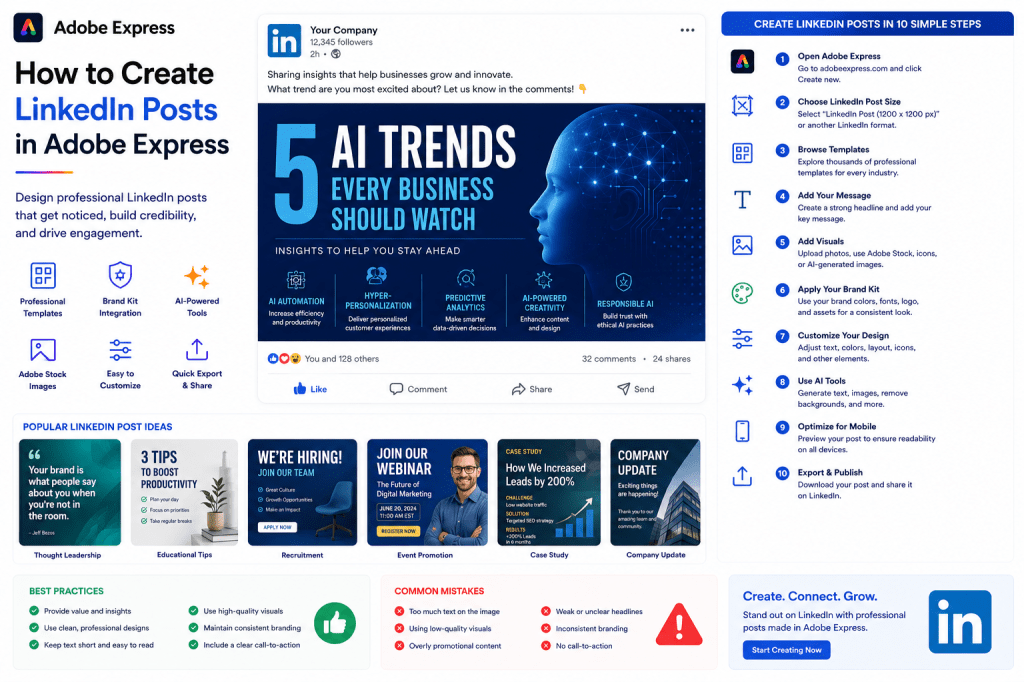
Why LinkedIn Posts Matter
Unlike many social platforms, LinkedIn users actively seek:
Professional Insights
Industry Trends
Business Advice
Educational Content
Career Development
Company Updates
A well-designed LinkedIn post can help you:
- Build authority
- Grow your audience
- Increase engagement
- Generate leads
- Drive website traffic
- Promote products and services
Visual content often performs better than text-only updates.
Types of LinkedIn Posts You Can Create
Adobe Express supports many LinkedIn content formats.
Examples include:
Thought Leadership Posts
Share expertise.
Industry Insights
Discuss trends and news.
Educational Graphics
Teach concepts visually.
Company Updates
Announce milestones.
Recruitment Posts
Promote open positions.
Event Promotions
Drive registrations.
Case Studies
Highlight customer success stories.
Product Announcements
Showcase new offerings.
Choose a format that supports your goals.
Step 1: Open Adobe Express
Sign in to Adobe Express.
From the dashboard:
Click Create New
or
Search LinkedIn Post Templates
Adobe Express offers numerous LinkedIn-specific designs.
Step 2: Select a LinkedIn Template
Browse categories such as:
Business
Marketing
Consulting
Recruiting
Technology
Education
Entrepreneurship
Templates provide a strong starting point.
Step 3: Determine Your Objective
Before designing, define your goal.
Examples:
Educate
Teach something valuable.
Inspire
Share lessons learned.
Inform
Provide industry updates.
Promote
Highlight products or services.
Recruit
Attract talent.
Clear goals improve effectiveness.
Step 4: Create a Strong Headline
The headline often determines whether users stop scrolling.
Examples:
5 AI Trends Every Marketer Should Know
Lessons Learned from Scaling a Startup
Why Most Projects Fail Before They Begin
The Future of Remote Work
Keep headlines concise and curiosity-driven.
Step 5: Add Visual Elements
LinkedIn graphics should look professional.
Options include:
Professional Photography
Team Images
Adobe Stock Photos
Charts
Infographics
Icons
AI-Generated Visuals
Choose visuals that support your message.
Step 6: Apply Your Brand Kit
Adobe Express Brand Kits simplify branding.
Apply:
Brand Colors
Brand Fonts
Logos
Graphic Elements
Consistent branding builds trust.
Step 7: Design for LinkedIn’s Professional Audience
LinkedIn users generally prefer:
Clean Layouts
Professional Typography
Minimal Clutter
Clear Messaging
Data-Driven Content
Avoid overly promotional or flashy designs.
Step 8: Use Adobe Express AI Features
Adobe Express includes AI-powered tools.
Examples:
Generate Headlines
Create Post Ideas
Generate Images
Remove Backgrounds
Expand Images
AI tools can speed up content creation dramatically.
Step 9: Optimize for Mobile Viewing
Many LinkedIn users browse on smartphones.
Review:
Text Readability
Contrast
Font Size
Visual Balance
Image Quality
Always preview before publishing.
Step 10: Export and Publish
When your design is complete:
Save Project
Download Graphic
Duplicate Design
Share to LinkedIn
Your LinkedIn post is ready.
Creating Thought Leadership Graphics
Thought leadership content helps build authority.
Examples:
Lessons Learned
Professional Advice
Industry Predictions
Personal Experiences
Business Frameworks
Focus on providing value.
Creating Educational LinkedIn Posts
Educational content often performs exceptionally well.
Examples:
How-To Graphics
Checklists
Frameworks
Tutorials
Industry Explanations
Teaching builds trust and engagement.
Creating Recruitment Graphics
Hiring posts should include:
Job Title
Company Name
Key Benefits
Application Details
Company Branding
Clear information attracts better candidates.
Creating Event Promotion Graphics
LinkedIn is ideal for promoting:
Webinars
Workshops
Conferences
Networking Events
Product Launches
Include a strong registration CTA.
Creating Case Study Graphics
Case studies help demonstrate expertise.
Include:
Challenge
Solution
Results
Metrics
Customer Success Story
Data-driven content performs well on LinkedIn.
Best Practices for LinkedIn Posts
Prioritize Value
Teach, inform, or inspire.
Use Clean Designs
Professional appearance matters.
Keep Text Readable
Avoid overcrowding.
Maintain Consistent Branding
Build recognition over time.
Include a Call-to-Action
Encourage engagement.
These practices improve results.
Common LinkedIn Post Mistakes
Too Much Text
Overwhelms readers.
Weak Headlines
Reduces engagement.
Poor Visual Quality
Looks unprofessional.
Excessive Promotion
Can reduce trust.
No Clear Objective
Weakens effectiveness.
Avoiding these mistakes improves performance.
Example Workflow
Imagine a consultant sharing AI insights.
Step 1
Choose a LinkedIn template.
Step 2
Apply Brand Kit.
Step 3
Add headline:
“5 AI Trends Every Business Should Watch”
Step 4
Insert supporting graphics.
Step 5
Review mobile layout.
Step 6
Export.
Step 7
Publish on LinkedIn.
The process often takes less than 15 minutes.
Why Adobe Express Is Ideal for LinkedIn Content
Adobe Express combines:
Professional Templates
Brand Management
AI Design Tools
Easy Editing
Fast Publishing
This makes it an excellent platform for LinkedIn content creation.
Conclusion
LinkedIn is one of the most powerful platforms for professional communication, thought leadership, and B2B marketing.
By combining templates, Brand Kits, AI-powered tools, and streamlined workflows, Adobe Express enables professionals and organizations to create high-quality LinkedIn graphics quickly and consistently.
Whether you’re sharing insights, promoting events, recruiting talent, or building your personal brand, Adobe Express provides everything needed to create engaging LinkedIn content.
Continue Learning Adobe Express
To learn more about social media content creation, explore these guides:
- How to Create Facebook Posts in Adobe Express
- How to Create Facebook Event Graphics in Adobe Express
- How to Create Instagram Posts in Adobe Express
For advanced content workflows, also read:
- Adobe Express for LinkedIn Marketing: The Complete Guide
- Adobe Express Content Calendars: The Complete Guide
- Adobe Express Marketing Automation: The Complete Guide








