Colors are one of the most recognizable elements of a brand.
Think about some of the world’s most recognizable companies. Long before you read the logo or company name, you often recognize the brand simply by its colors.
Adobe Express allows you to store your official brand colors inside a Brand Kit so they can be applied consistently across every design.
Whether you’re creating:
- Social media graphics
- Marketing campaigns
- Presentations
- Videos
- Flyers
- Employee communications
- Educational materials
adding brand colors to Adobe Express helps ensure every piece of content looks professional and consistent.
In this guide, you’ll learn how to add, manage, and use brand colors in Adobe Express.
Why Brand Colors Matter
Colors are a major part of brand identity.
Consistent use of color helps:
Increase Brand Recognition
People recognize your content faster.
Improve Professionalism
Designs look more polished.
Create Consistency
Every project follows the same visual standards.
Support Team Collaboration
Everyone uses approved colors.
Save Time
No need to manually enter color codes.
Brand colors become a visual shortcut for your audience.
What Are Brand Colors?
Brand colors are the official colors associated with your organization.
Most brands have:
Primary Colors
Main company colors.
Secondary Colors
Supporting colors.
Accent Colors
Highlights and call-to-action colors.
Neutral Colors
Background and text colors.
Together, these colors form a complete visual system.
Examples of Brand Color Categories
Primary Colors
Used most frequently.
Examples:
- Main website color
- Logo color
- Corporate identity color
These colors represent the brand.
Secondary Colors
Used to support the primary palette.
Examples:
- Supporting backgrounds
- Design elements
- Visual accents
Secondary colors add flexibility.
Accent Colors
Used sparingly to attract attention.
Examples:
- Buttons
- Calls-to-action
- Promotions
- Highlights
Accent colors help direct focus.
Neutral Colors
Used for balance.
Examples:
- White
- Gray
- Black
- Soft background shades
Neutrals improve readability and structure.
Step 1: Gather Your Brand Colors
Before opening Adobe Express, collect your official color values.
The most common format is:
HEX Codes
Examples:
- #0057FF
- #00A65A
- #F5F5F5
HEX values ensure accuracy.
If your company has a brand guide, use the official color specifications.
Step 2: Open Adobe Express
Sign in to Adobe Express.
Navigate to:
Brand
or
Brand Kit
depending on your workspace configuration.
This area stores all branding assets.
Step 3: Open Your Brand Kit
Select the Brand Kit you want to update.
Examples:
- Corporate Brand Kit
- Marketing Brand Kit
- Department Brand Kit
Open the editing interface.
Step 4: Locate the Colors Section
Inside the Brand Kit, find:
Colors
or
Brand Colors
This section manages your color palette.
Adobe Express allows multiple colors to be stored.
Step 5: Add Your Primary Colors
Begin by entering your primary brand colors.
Examples:
Corporate Blue
Primary brand color.
Corporate Green
Secondary primary color.
Main Accent Color
Used across campaigns.
Enter the official HEX codes whenever possible.
Step 6: Add Secondary Colors
Next, add supporting colors.
Examples:
Light Blue
Supporting background.
Soft Gray
Neutral design element.
Supporting Green
Visual variation.
Secondary colors improve design flexibility.
Step 7: Add Accent Colors
Accent colors help draw attention.
Examples:
CTA Orange
Buttons and promotions.
Highlight Yellow
Important information.
Promotional Red
Limited-time offers.
Accent colors should be used strategically.
Step 8: Add Neutral Colors
Neutral colors complete the palette.
Examples:
White
Backgrounds.
Dark Gray
Text.
Light Gray
Supporting sections.
Black
Headlines.
These colors improve readability.
Step 9: Save Your Brand Palette
After entering all colors:
- Review the palette.
- Verify HEX values.
- Save the Brand Kit.
Your colors are now available across Adobe Express.
Applying Brand Colors to Projects
Once your Brand Kit is configured:
- Open a project.
- Apply the Brand Kit.
- Adobe Express automatically makes your colors available.
This eliminates repetitive setup.
Using Brand Colors in Social Media Content
Examples include:
LinkedIn Posts
Professional branding.
Instagram Graphics
Visual consistency.
Facebook Campaigns
Recognizable content.
Pinterest Pins
Stronger brand visibility.
Consistent colors improve recognition.
Using Brand Colors in Marketing Campaigns
Marketing teams often use brand colors for:
Product Launches
Consistent promotion.
Webinar Campaigns
Unified visuals.
Advertisements
Brand awareness.
Lead Magnets
Professional appearance.
Color consistency strengthens campaign performance.
Using Brand Colors in Presentations
Examples include:
Cover Slides
Brand identity.
Section Dividers
Visual structure.
Charts
Consistent appearance.
Callout Sections
Highlight information.
Brand colors improve presentation quality.
Building a Complete Color System
Many organizations use a structured palette.
Example:
Primary
- Blue
- Green
Secondary
- Light Blue
- Light Green
Accent
- Orange
Neutral
- White
- Gray
- Black
A complete system provides flexibility while maintaining consistency.
Sharing Brand Colors Across Teams
One major advantage of Brand Kits is collaboration.
Benefits include:
One Source of Truth
Official colors only.
Consistent Content
Across departments.
Faster Production
No color searching.
Better Governance
Controlled branding standards.
Shared color palettes support organization-wide consistency.
Best Practices for Brand Colors
Use Official HEX Codes
Avoid guessing.
Keep the Palette Manageable
Too many colors create confusion.
Include Neutral Colors
Support readability.
Use Accent Colors Sparingly
Maintain impact.
Review Regularly
Update when branding changes.
These practices improve usability.
Common Color Mistakes
Using Unofficial Colors
Weakens brand identity.
Too Many Accent Colors
Creates visual clutter.
Missing Neutral Colors
Limits flexibility.
Inconsistent Color Usage
Reduces recognition.
Ignoring Brand Guidelines
Creates confusion.
Avoiding these mistakes improves professionalism.
Example Brand Palette
Imagine a technology company.
Primary Colors
- Blue (#0057FF)
- Green (#00A65A)
Secondary Colors
- Light Blue (#DCEBFF)
- Light Green (#DFF7EA)
Accent Color
- Orange (#FF7A00)
Neutral Colors
- White (#FFFFFF)
- Gray (#E5E5E5)
- Dark Gray (#333333)
This palette supports hundreds of content variations.
Why Brand Colors Improve Productivity
Without Brand Colors:
Search for HEX Codes
Repeated effort.
Risk Inconsistency
Wrong colors appear.
Slow Design Process
Manual setup.
With Brand Colors:
Instant Access
Colors always available.
Faster Creation
Less setup time.
Better Consistency
Approved palette only.
Improved Collaboration
Shared visual standards.
The time savings accumulate quickly.
Conclusion
Adding brand colors to Adobe Express is one of the simplest ways to improve branding consistency and content creation efficiency.
By storing your official color palette in a Brand Kit, you ensure that every project—from social media graphics and presentations to marketing campaigns and videos—uses approved colors that reinforce your visual identity.
Whether you’re an individual creator, marketer, educator, or enterprise team, a well-defined color system helps create content that looks professional, recognizable, and consistent across every channel.
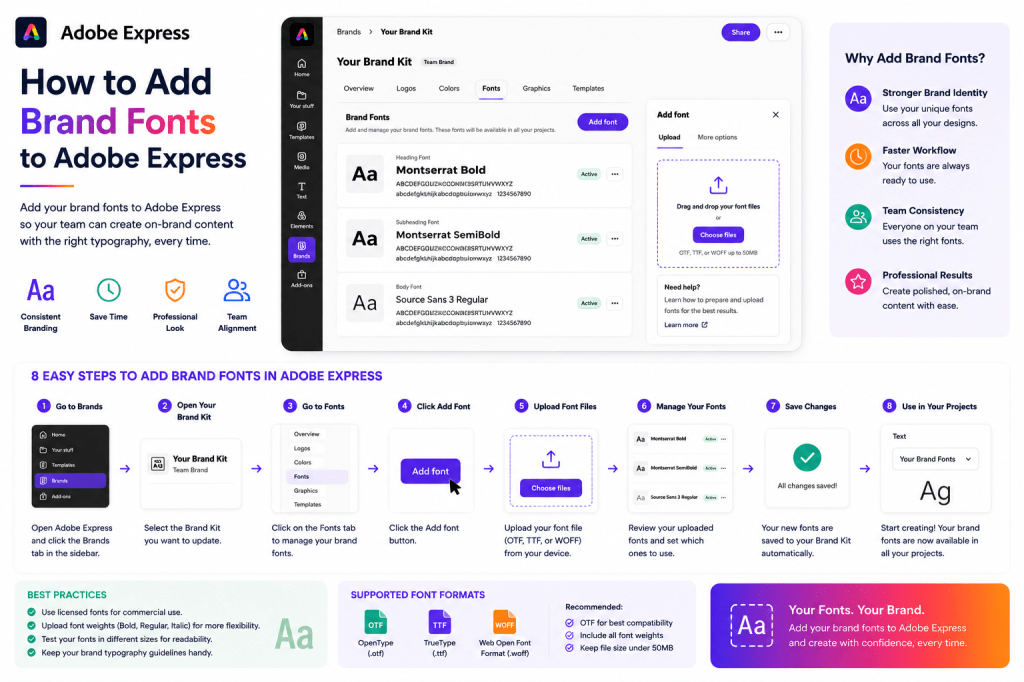
The next step is learning how to add and manage brand fonts inside Adobe Express.
Continue Learning Adobe Express
To learn more about building a complete branding system, explore these guides:
- Adobe Express Brand Management: The Complete Guide
- Adobe Express Content Creation: The Complete Guide
- Adobe Express Digital Asset Management: The Complete Guide
If you’re creating content across teams, also read:
- Adobe Express Team Collaboration: The Complete Guide
- Adobe Express Workflow Automation: The Complete Guide
- Adobe Express Content Operations: The Complete Guide








