Introduction
Your logo is the most recognizable part of your brand identity.
Whether you’re creating social media graphics, marketing campaigns, presentations, videos, or internal communications, your logo helps audiences instantly identify your organization.
Adobe Express makes it easy to store logos inside a Brand Kit so they can be applied across projects with just a few clicks.
Instead of uploading your logo every time you create content, you can centralize logo management and ensure consistency across your entire organization.
In this guide, you’ll learn how to add logos to your Adobe Express Brand Kit and establish a stronger, more efficient branding workflow.
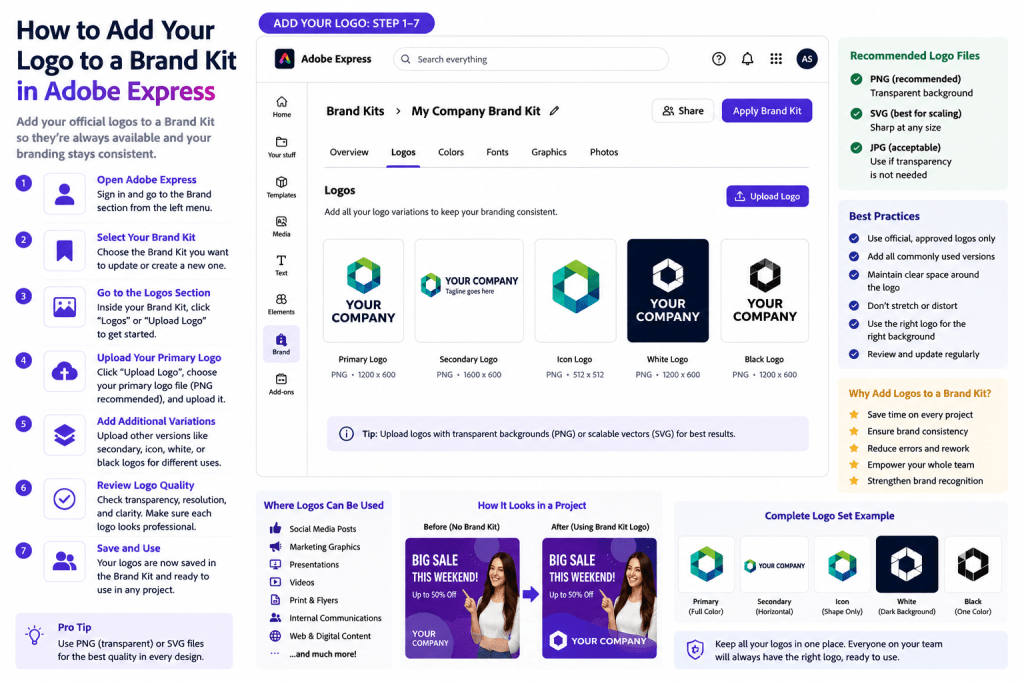
Why Add Logos to a Brand Kit?
Many users manually upload logos for every project.
This creates several problems:
Lost Time
Repeated uploads slow down workflows.
Inconsistent Branding
Different logo versions may be used.
Increased Errors
Outdated logos can appear in content.
Poor Team Alignment
Employees may use different assets.
Adding logos to a Brand Kit solves these issues.
Benefits include:
Faster Content Creation
Logos are always available.
Better Consistency
Everyone uses approved versions.
Easier Collaboration
Shared branding resources.
Improved Professionalism
Unified visual identity.
What Logo Files Should You Upload?
Before building your Brand Kit, gather your official logo files.
Most organizations maintain several versions.
Primary Logo
Your standard logo.
Used most frequently.
Secondary Logo
Alternative layout.
Useful for different formats.
Icon Logo
Simplified symbol version.
Often used in social media and small spaces.
White Logo
For dark backgrounds.
Black Logo
For light backgrounds.
Having multiple variations increases design flexibility.
Recommended Logo File Formats
Adobe Express supports common image formats.
PNG
Best choice for most branding.
Benefits:
- Transparent background
- High quality
- Easy to use
SVG
Ideal for scalable graphics.
Benefits:
- Sharp at any size
- Small file size
- Professional quality
JPEG
Acceptable when transparency is not required.
PNG and SVG are generally preferred.
Step 1: Open Adobe Express
Sign in to your Adobe Express account.
Navigate to:
Brand
or
Brand Kits
depending on your workspace configuration.
This is where branding assets are managed.
Step 2: Select Your Brand Kit
If you already have a Brand Kit:
- Open the Brand section.
- Select your Brand Kit.
- Open the editing interface.
If you don’t have a Brand Kit yet, create one first.
Step 3: Locate the Logo Section
Within the Brand Kit, look for:
Logos
or
Upload Logo
This section stores all approved logo files.
Adobe Express keeps them accessible across future projects.
Step 4: Upload Your Primary Logo
Select:
Upload Logo
Choose your primary logo file.
Recommended:
- PNG with transparent background
- High-resolution version
Wait for the upload to complete.
Your logo is now part of the Brand Kit.
Step 5: Upload Additional Logo Variations
Don’t stop with one logo.
Add:
Secondary Logo
Alternative layout.
Icon Version
Small-format branding.
White Version
Dark backgrounds.
Black Version
Light backgrounds.
A complete logo library improves flexibility.
Step 6: Review Logo Quality
After uploading:
Check Transparency
No unwanted background.
Verify Resolution
Logo remains sharp.
Confirm Correct Version
Official branding only.
Test Visibility
Works on multiple backgrounds.
High-quality logos improve every future design.
Organizing Logos in Your Brand Kit
As your asset library grows, organization becomes important.
Examples:
Primary Logo
Default branding.
Horizontal Logo
Wide layouts.
Vertical Logo
Tall layouts.
Social Media Icon
Small placements.
Clear organization improves usability.
Applying Logos to Projects
Once logos are stored in the Brand Kit:
- Open a project.
- Access Brand Kit assets.
- Select the desired logo.
- Insert into the design.
No additional uploads are required.
This dramatically speeds up content creation.
Using Logos in Social Media Content
Examples include:
LinkedIn Posts
Professional branding.
Instagram Graphics
Visual consistency.
Facebook Campaigns
Brand recognition.
Pinterest Pins
Increased visibility.
Adding logos consistently improves recognition over time.
Using Logos in Marketing Campaigns
Marketing teams often add logos to:
Product Launch Graphics
Brand awareness.
Event Promotions
Professional appearance.
Advertisements
Consistent branding.
Lead Generation Assets
Trust and recognition.
Brand visibility is critical in marketing.
Using Logos in Presentations
Presentations frequently include:
Cover Slides
Brand identity.
Section Dividers
Visual consistency.
Closing Slides
Professional appearance.
Corporate Reports
Organizational branding.
Brand Kits simplify presentation creation.
Sharing Logo Assets Across Teams
Organizations often allow multiple departments to access the same Brand Kit.
Benefits include:
Consistent Branding
Everyone uses approved assets.
Reduced Errors
No outdated logos.
Faster Content Production
Logos are immediately available.
Better Governance
Controlled branding standards.
Shared Brand Kits become a single source of truth.
Logo Placement Best Practices
Maintain Clear Space
Avoid clutter around logos.
Preserve Proportions
Do not stretch or distort.
Use Appropriate Versions
Match background colors.
Avoid Excessive Size
Logos should support content, not dominate it.
Follow Brand Guidelines
Use approved placements.
These practices improve professionalism.
Common Logo Mistakes
Uploading Low-Resolution Files
Results appear blurry.
Using Outdated Logos
Creates inconsistency.
Uploading Only One Version
Limits flexibility.
Ignoring Transparency
Can create poor visual results.
Stretching Logos
Damages brand integrity.
Avoiding these mistakes strengthens branding.
Example Brand Kit Structure
Imagine a SaaS company.
Logos
- Primary logo
- Horizontal logo
- White logo
- Icon logo
Colors
- Blue primary
- Green accent
- Gray neutral
Fonts
- Montserrat
- Open Sans
Every team can create on-brand content using these resources.
Why Logo Management Matters
Your logo appears on nearly every customer-facing asset.
Without a Brand Kit:
Upload Repeatedly
Wastes time.
Risk Errors
Wrong versions appear.
Inconsistent Branding
Different assets look different.
With a Brand Kit:
One Central Source
Approved logos only.
Faster Workflows
Immediate access.
Better Governance
Controlled branding.
Stronger Recognition
Consistent visual identity.
The long-term benefits are substantial.
Conclusion
Adding your logo to a Brand Kit in Adobe Express is one of the simplest ways to improve branding consistency and content creation efficiency.
By storing official logo files in a centralized location, you can eliminate repetitive uploads, reduce errors, support team collaboration, and ensure every project reflects your organization’s visual identity.
Whether you’re creating social media graphics, presentations, marketing campaigns, videos, or internal communications, a well-maintained logo library becomes an essential part of a professional Adobe Express workflow.
The stronger your Brand Kit, the easier it becomes to create content that looks polished, consistent, and unmistakably yours.
Continue Learning Adobe Express
To learn more about branding and content operations, explore these guides:
- Adobe Express Brand Management: The Complete Guide
- Adobe Express Content Creation: The Complete Guide
- Adobe Express Business Productivity: The Complete Guide
If you’re building organization-wide branding systems, also read:
- Adobe Express Team Collaboration: The Complete Guide
- Adobe Express Workflow Automation: The Complete Guide
- Adobe Express Content Operations: The Complete Guide







 Acrobat Express Pro