One of the most powerful features in Adobe Express is the Brand Kit.
A Brand Kit allows you to store your company’s visual identity in one central location so it can be applied consistently across every project.
Instead of manually selecting colors, uploading logos, and choosing fonts for every design, Adobe Express can apply your branding automatically.
Whether you’re creating:
- Social media graphics
- Marketing campaigns
- Presentations
- Videos
- Flyers
- Employee communications
- Customer-facing content
A Brand Kit helps maintain consistency while dramatically improving productivity.
In this guide, you’ll learn how to build, manage, and use a Brand Kit in Adobe Express.
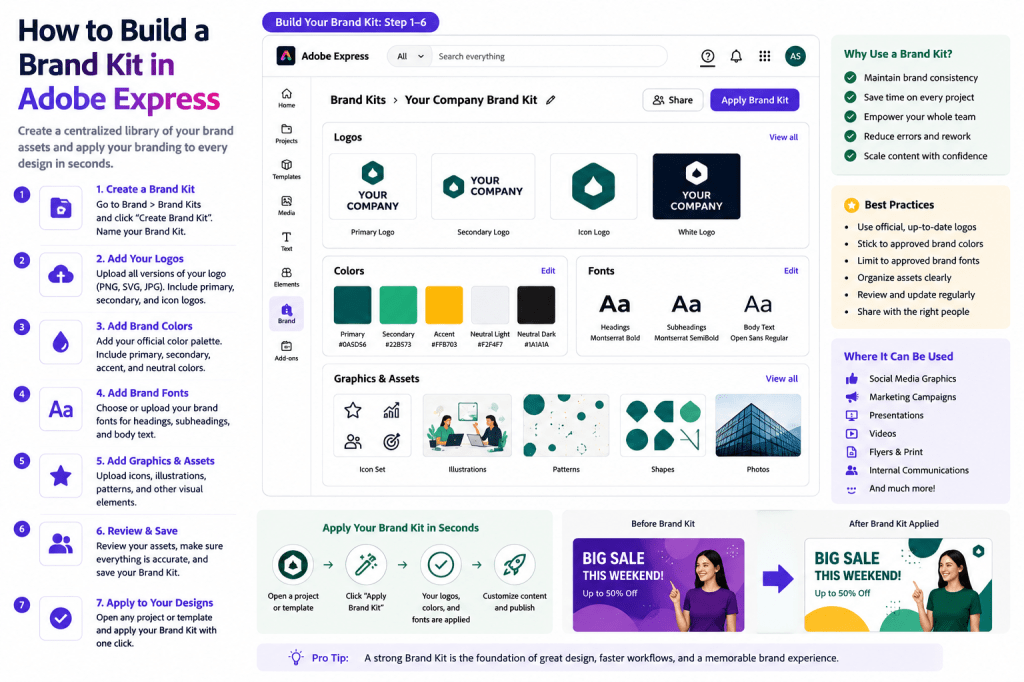
What Is a Brand Kit?
A Brand Kit is a collection of brand assets stored inside Adobe Express.
Think of it as your company’s design toolkit.
A Brand Kit typically contains:
Logos
Official company logos.
Brand Colors
Approved color palettes.
Fonts
Company typography.
Graphics
Reusable visual elements.
Design Assets
Supporting branding materials.
Instead of rebuilding your brand identity for every project, Adobe Express keeps everything organized in one place.
Why Brand Kits Matter
Many organizations struggle with branding consistency.
Different employees often use:
- Different logos
- Different colors
- Different fonts
- Different layouts
This creates an inconsistent customer experience.
A Brand Kit solves this problem.
Benefits include:
Consistent Branding
Unified appearance.
Faster Design Work
Less setup time.
Better Collaboration
Shared visual standards.
Improved Professionalism
Stronger brand identity.
Scalable Content Creation
Support larger content volumes.
What Should Be Included in a Brand Kit?
The strongest Brand Kits contain core visual assets.
Logos
Examples:
Primary Logo
Main company logo.
Secondary Logo
Alternative layout.
Icon Logo
Simplified version.
Monochrome Logo
Single-color variation.
Having multiple logo versions improves flexibility.
Brand Colors
Most organizations use:
Primary Colors
Core brand identity.
Secondary Colors
Supporting palette.
Accent Colors
Highlights and calls-to-action.
Neutral Colors
Backgrounds and supporting elements.
Store official color values whenever possible.
Brand Fonts
Typography helps define brand personality.
Examples:
Heading Font
Main titles.
Body Font
Paragraph content.
Accent Font
Special applications.
Using approved fonts improves consistency.
Brand Graphics
Examples include:
Icons
Custom icon sets.
Shapes
Reusable design elements.
Illustrations
Brand artwork.
Visual Components
Recognizable design assets.
These elements strengthen brand recognition.
Step 1: Open Adobe Express
Sign in to Adobe Express.
Navigate to:
Brand
or
Brand Kit
depending on your workspace configuration.
This section serves as your branding hub.
Step 2: Create a New Brand Kit
If no Brand Kit exists:
- Click Create Brand Kit.
- Enter a name.
- Save the new Brand Kit.
Examples:
Good Names
- Company Brand Kit
- Marketing Brand Kit
- Corporate Identity Kit
Clear names improve organization.
Step 3: Upload Your Logo
Add official logo files.
Recommended formats:
PNG
Transparent background.
SVG
Scalable vector graphics.
JPEG
Basic image format.
Upload all commonly used versions.
Examples:
- Full logo
- Horizontal logo
- Icon version
- White version
This provides flexibility for future projects.
Step 4: Add Brand Colors
Enter your official color palette.
Examples include:
Primary Brand Color
Used most frequently.
Secondary Brand Color
Supporting color.
Accent Color
Calls-to-action and highlights.
Neutral Colors
Backgrounds and supporting elements.
Adobe Express can apply these colors automatically across designs.
Step 5: Add Brand Fonts
Upload or select approved fonts.
Examples:
Corporate Heading Font
Primary headlines.
Corporate Body Font
Paragraph text.
Marketing Font
Campaign-specific content.
Font consistency strengthens visual identity.
Step 6: Add Supporting Assets
Many organizations expand their Brand Kit with:
Icons
Reusable graphics.
Illustrations
Brand artwork.
Background Elements
Design patterns.
Product Graphics
Marketing assets.
These resources improve efficiency.
Step 7: Save Your Brand Kit
After adding assets:
- Review all entries.
- Verify branding accuracy.
- Save changes.
Your Brand Kit is now ready for use.
Applying a Brand Kit to Projects
One of the biggest advantages of Brand Kits is automatic application.
When creating content:
Open a Template
Choose a design.
Apply Brand Kit
Select your saved kit.
Update Content
Replace text and images.
Publish
Share the final design.
Adobe Express automatically applies branding elements.
Using Brand Kits for Social Media
Social media teams benefit greatly.
Examples include:
LinkedIn Posts
Professional content.
Instagram Graphics
Visual marketing.
Facebook Campaigns
Community engagement.
Pinterest Pins
Brand discovery.
Every design remains visually consistent.
Using Brand Kits for Marketing
Marketing departments often create:
- Product launches
- Promotions
- Webinars
- Lead generation assets
A Brand Kit ensures every campaign aligns with company standards.
Using Brand Kits for Internal Communications
Examples include:
Employee Announcements
Corporate updates.
HR Materials
Recruitment content.
Training Resources
Employee education.
Leadership Communications
Executive messaging.
Internal content benefits from consistent branding as well.
Sharing Brand Kits with Teams
Organizations often share Brand Kits across departments.
Benefits include:
Unified Branding
One source of truth.
Easier Collaboration
Everyone uses the same assets.
Faster Content Creation
Less searching for files.
Better Governance
Controlled branding standards.
Shared Brand Kits become organizational assets.
Brand Kit Best Practices
Store Official Logos Only
Avoid outdated versions.
Use Approved Colors
Maintain consistency.
Standardize Fonts
Reduce variation.
Review Regularly
Update when branding changes.
Train Team Members
Ensure proper usage.
These practices improve long-term success.
Common Brand Kit Mistakes
Uploading Too Many Assets
Creates confusion.
Using Unapproved Colors
Weakens consistency.
Forgetting Font Standards
Creates visual variation.
Keeping Outdated Logos
Leads to branding errors.
No Ownership Structure
Makes governance difficult.
Avoiding these mistakes improves adoption.
Example Brand Kit Structure
Imagine a software company.
Logos
- Primary logo
- White logo
- Icon logo
Colors
- Blue primary
- Green accent
- Gray neutral
Fonts
- Montserrat
- Open Sans
Graphics
- Product icons
- Illustration set
This simple structure supports hundreds of future projects.
Why Brand Kits Improve Productivity
Without a Brand Kit:
Find Logos
Search manually.
Select Colors
Remember values.
Choose Fonts
Find approved typography.
Build Consistency
Requires effort.
With a Brand Kit:
Apply Branding Instantly
One-click consistency.
Reduce Errors
Approved assets only.
Save Time
Less repetitive work.
Scale Faster
Support larger content operations.
The productivity gains are substantial.
Conclusion
Building a Brand Kit in Adobe Express is one of the most effective ways to create consistent, professional content at scale.
By centralizing logos, colors, fonts, and reusable assets, organizations can improve branding, reduce design time, support collaboration, and maintain quality across every project.
Whether you’re an individual creator, small business, marketing team, or enterprise organization, a well-maintained Brand Kit becomes the foundation of efficient content creation.
The stronger your Brand Kit, the easier it becomes to create on-brand content quickly and confidently.
Continue Learning Adobe Express
To learn more about branding and content operations, explore these guides:
- Adobe Express Brand Management: The Complete Guide
- Adobe Express Content Creation: The Complete Guide
- Adobe Express Business Productivity: The Complete Guide
If you’re scaling content across teams, also read:
- Adobe Express Team Collaboration: The Complete Guide
- Adobe Express Workflow Automation: The Complete Guide
- Adobe Express Content Operations: The Complete Guide







 Acrobat Express Pro