Creating a Brand Kit is only the first step.
The real productivity benefits come when you apply that Brand Kit to your projects.
Instead of manually selecting logos, colors, and fonts every time you create content, Adobe Express allows you to instantly apply your branding across designs.
Whether you’re creating:
- Social media graphics
- Presentations
- Marketing campaigns
- Videos
- Flyers
- Newsletters
- Internal communications
A Brand Kit helps ensure every project remains visually consistent and professionally branded.
In this guide, you’ll learn how to apply your Brand Kit to projects in Adobe Express and maximize the value of your branding system.
What Is a Brand Kit?
A Brand Kit is a collection of branding assets stored inside Adobe Express.
Typically it includes:
Logos
Official brand logos.
Brand Colors
Approved color palettes.
Brand Fonts
Typography standards.
Graphics
Reusable design elements.
Visual Assets
Supporting brand materials.
Applying a Brand Kit allows Adobe Express to automatically use these assets throughout your project.
Why Apply a Brand Kit?
Without a Brand Kit, users often:
- Upload logos repeatedly
- Search for brand colors
- Select fonts manually
- Create inconsistent designs
Applying a Brand Kit solves these problems.
Benefits include:
Faster Design Creation
Less setup work.
Consistent Branding
Unified visual identity.
Better Team Collaboration
Everyone uses approved assets.
Reduced Errors
No outdated logos or colors.
Improved Productivity
Create more content in less time.
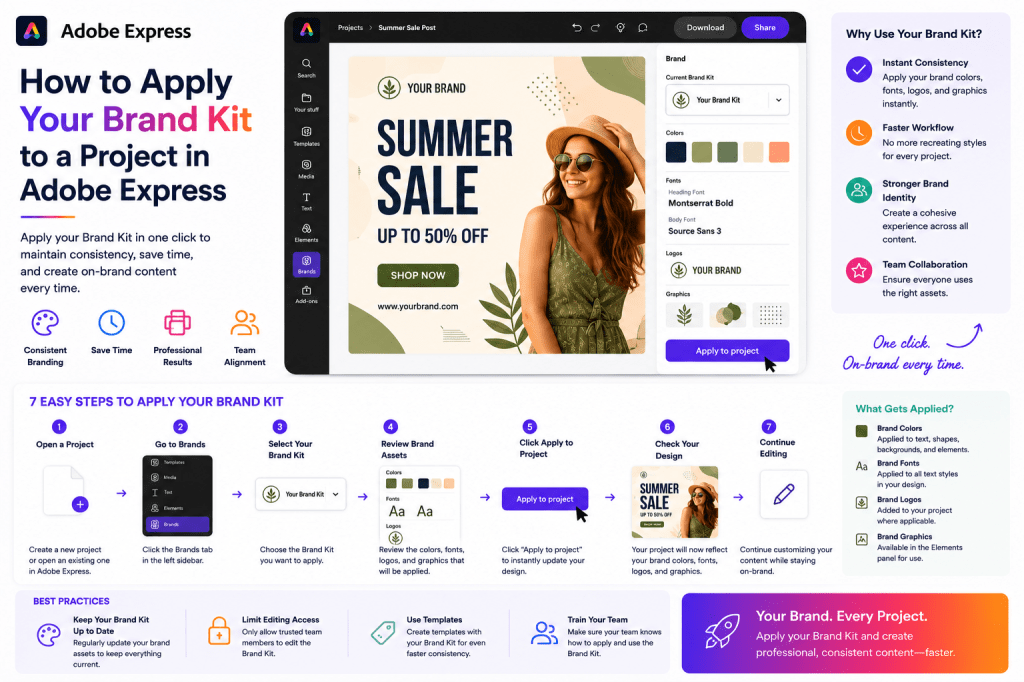
Step 1: Open Adobe Express
Sign in to Adobe Express.
Navigate to:
Home
or
Your Projects
depending on your workflow.
Select the project you want to update.
Step 2: Create or Open a Project
You can apply a Brand Kit to:
New Projects
Start with branding immediately.
Existing Projects
Update designs with current branding.
Templates
Customize reusable assets.
Shared Team Projects
Maintain consistency across teams.
Open the project you want to work on.
Step 3: Locate Brand Tools
Inside the editing workspace, locate:
Brand
Brand Kit
Branding
or similar branding controls.
Adobe Express places branding features within easy reach of the editor.
Step 4: Select Your Brand Kit
If multiple Brand Kits exist, choose the correct one.
Examples:
Corporate Brand Kit
Company-wide branding.
Marketing Brand Kit
Campaign assets.
Department Brand Kit
Team-specific branding.
Event Brand Kit
Temporary campaigns.
Select the desired Brand Kit.
Step 5: Apply Brand Colors
Adobe Express can automatically suggest and apply brand colors.
Benefits include:
Consistent Visual Identity
Approved colors only.
Faster Editing
No manual HEX code entry.
Improved Professionalism
Unified appearance.
Colors become available throughout the project.
Step 6: Apply Brand Fonts
Next, Adobe Express can apply your approved typography.
Examples include:
Headings
Brand headline font.
Body Text
Approved reading font.
Promotional Elements
Accent typography.
Typography consistency helps reinforce branding.
Step 7: Insert Brand Logos
Your Brand Kit logos become available within the project.
Examples:
Main Logo
Standard branding.
Icon Logo
Compact placement.
White Logo
Dark backgrounds.
Alternative Versions
Flexible usage.
Logos can be inserted without re-uploading files.
Step 8: Review Automatic Brand Suggestions
Adobe Express often recommends branding updates.
Examples:
Color Changes
Match the Brand Kit.
Font Updates
Apply approved typography.
Design Alignment
Improve consistency.
Review suggestions before publishing.
Applying Brand Kits to Templates
Templates become significantly more valuable when combined with Brand Kits.
Workflow:
- Open template.
- Apply Brand Kit.
- Update content.
- Publish.
This allows rapid content production while maintaining brand standards.
Using Brand Kits for Social Media Projects
Examples include:
Instagram Posts
Branded visuals.
LinkedIn Graphics
Professional content.
Facebook Campaigns
Consistent marketing.
Pinterest Pins
Recognizable designs.
Brand Kits improve audience recognition over time.
Using Brand Kits for Marketing Campaigns
Marketing teams frequently create:
Product Launch Graphics
Promotions
Event Campaigns
Lead Magnets
Applying Brand Kits ensures every asset reflects the organization’s identity.
Using Brand Kits for Presentations
Presentations benefit greatly from consistent branding.
Examples:
Cover Slides
Strong first impression.
Section Headers
Consistent navigation.
Charts and Graphics
Unified appearance.
Closing Slides
Professional finish.
Brand Kits simplify presentation design.
Using Brand Kits for Video Content
Video projects can also benefit from branding consistency.
Examples:
Intro Slides
Brand identity.
Title Screens
Professional appearance.
Lower Thirds
Consistent typography.
End Screens
Unified branding.
Brand Kits help maintain continuity across visual media.
Team Collaboration Benefits
Organizations often share Brand Kits across teams.
Benefits include:
One Source of Truth
Approved assets only.
Faster Content Creation
No searching for files.
Better Governance
Brand compliance.
Easier Onboarding
New employees create branded content immediately.
Shared Brand Kits improve operational efficiency.
Best Practices When Applying Brand Kits
Use the Correct Brand Kit
Avoid mixing brand systems.
Review Automatic Changes
Verify recommendations.
Maintain Logo Standards
Use approved placements.
Follow Typography Rules
Keep fonts consistent.
Use Official Colors
Avoid custom variations.
These practices improve long-term consistency.
Common Mistakes
Ignoring Brand Suggestions
Misses consistency opportunities.
Mixing Multiple Brand Kits
Creates visual confusion.
Using Unapproved Assets
Weakens brand identity.
Overriding Colors Frequently
Reduces consistency.
Using Old Logos
Creates branding issues.
Avoiding these mistakes improves professionalism.
Example Workflow
Imagine a marketing manager creating a LinkedIn campaign.
Step 1
Open Adobe Express.
Step 2
Choose a social media template.
Step 3
Apply Corporate Brand Kit.
Step 4
Automatically apply colors.
Step 5
Apply brand fonts.
Step 6
Insert company logo.
Step 7
Update campaign messaging.
Step 8
Publish.
A process that once took hours can often be completed in minutes.
Why Applying Brand Kits Improves Productivity
Without Brand Kits:
Search for Assets
Repeated effort.
Upload Logos
Every project.
Select Fonts
Manual decisions.
Enter Color Codes
Time-consuming.
With Brand Kits:
One-Click Branding
Immediate consistency.
Faster Creation
Less setup.
Better Collaboration
Shared standards.
Reduced Errors
Approved assets only.
The efficiency gains become substantial as content volume increases.
Conclusion
Applying your Brand Kit to projects in Adobe Express is one of the fastest ways to create professional, consistent content at scale.
By automatically applying logos, colors, fonts, and approved branding assets, you can eliminate repetitive work, reduce errors, improve collaboration, and accelerate content production.
Whether you’re creating social media posts, presentations, marketing campaigns, videos, or internal communications, Brand Kits provide a simple but powerful way to maintain a strong visual identity across every project.
The more content you create, the more valuable your Brand Kit becomes.
Continue Learning Adobe Express
To learn more about branding and workflow optimization, explore these guides:
- Adobe Express Brand Management: The Complete Guide
- Adobe Express Brand Kits: The Complete Guide
- Adobe Express Content Creation: The Complete Guide
If you’re scaling content production across teams, also read:
- Adobe Express Team Collaboration: The Complete Guide
- Adobe Express Workflow Automation: The Complete Guide
- Adobe Express Content Operations: The Complete Guide







 Acrobat Express Pro