Templates are one of the biggest productivity boosters in Adobe Express.
While Adobe Express provides thousands of ready-made templates, there comes a point when you may want to create your own.
Custom templates help you:
- Save time
- Maintain brand consistency
- Standardize content creation
- Support team collaboration
- Scale marketing efforts
Instead of recreating the same design over and over again, you can build a reusable template once and use it repeatedly.
In this guide, you’ll learn how to create your own Adobe Express templates and turn them into valuable assets for future projects.
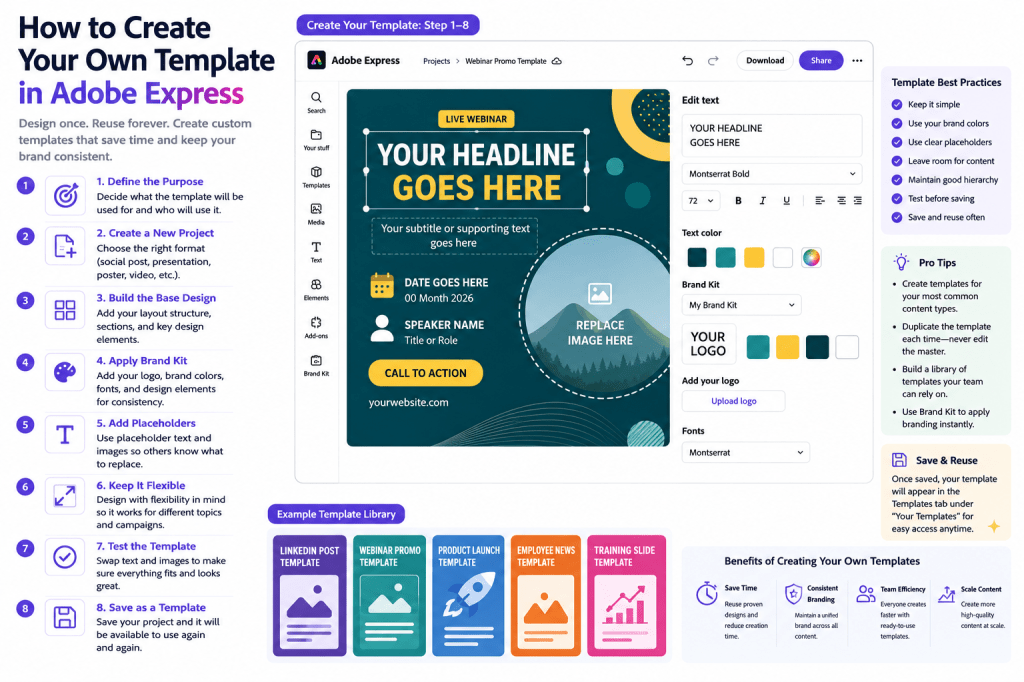
What Is a Custom Template?
A custom template is a design you create and save for future reuse.
Instead of starting from scratch every time, you create a master version that includes:
Branding
Logos, colors, and fonts.
Layout Structure
Predefined content arrangement.
Design Elements
Graphics and visual assets.
Placeholders
Areas that can be updated later.
Think of it as a blueprint for future content.
Why Create Your Own Templates?
Many Adobe Express users eventually create their own template library.
Benefits include:
Faster Content Creation
Reuse proven designs.
Consistent Branding
Maintain visual identity.
Team Efficiency
Standardize content creation.
Better Quality Control
Use approved layouts.
Scalable Workflows
Create more content with less effort.
Organizations often save hundreds of hours annually through template reuse.
Common Types of Custom Templates
Examples include:
LinkedIn Post Templates
Recurring thought leadership content.
Webinar Promotion Templates
Event marketing.
Presentation Templates
Business communication.
Product Launch Templates
Marketing campaigns.
Employee Announcement Templates
Internal communications.
Training Material Templates
Educational resources.
These are ideal candidates for reuse.
Step 1: Define the Purpose
Before designing a template, decide what it will be used for.
Ask:
Who Will Use It?
Marketing team, HR, sales, or educators.
How Often?
Weekly, monthly, or quarterly.
What Content Changes?
Text, images, dates, or offers.
The best templates support repeatable workflows.
Step 2: Create a New Project
Open Adobe Express.
Click:
Create New
Choose the content format.
Examples:
- Social post
- Presentation
- Flyer
- Video
- Poster
Start with the format you’ll use most frequently.
Step 3: Build the Base Design
Design the project as if it were a finished asset.
Include:
Headline Area
Main message location.
Image Area
Visual content placement.
Logo Position
Consistent branding.
Call-to-Action Section
Encourage action.
Supporting Content
Descriptions and details.
The goal is to create a flexible framework.
Step 4: Apply Your Brand Kit
If available, use your Brand Kit.
Include:
Brand Colors
Official color palette.
Fonts
Approved typography.
Logos
Company branding.
Design Elements
Standard visual assets.
This ensures every future use remains consistent.
Step 5: Use Placeholder Content
Templates should be easy to update.
Examples:
Headline Placeholder
“Insert Campaign Headline”
Image Placeholder
“Replace With Product Image”
Date Placeholder
“Insert Event Date”
CTA Placeholder
“Insert Call to Action”
Placeholders help other users understand what to modify.
Step 6: Keep the Layout Flexible
Avoid overly rigid designs.
Good templates allow for:
Different Headlines
Variable lengths.
Different Images
Various formats.
Different Campaigns
Multiple use cases.
Flexibility increases long-term value.
Step 7: Test the Template
Before saving:
Replace Text
Verify flexibility.
Change Images
Ensure adaptability.
Adjust Content Length
Test real-world scenarios.
Review Branding
Confirm consistency.
Testing helps identify weaknesses early.
Step 8: Save the Project
Once satisfied:
- Save the project.
- Give it a clear name.
- Store it in your template library.
Examples:
Good Names
- LinkedIn Thought Leadership Template
- Webinar Promotion Template
- Product Launch Template
Clear names improve discoverability.
Step 9: Duplicate for Future Use
Instead of editing the master template directly:
Duplicate It
Create a working copy.
Preserve the Original
Protect the template.
Customize the Copy
Adapt for each campaign.
This workflow prevents accidental damage.
Building a Template Library
Over time, you’ll accumulate multiple templates.
Consider organizing them by category.
Social Media Templates
Examples:
Marketing Templates
Examples:
- Product launches
- Campaign graphics
- Lead magnets
Business Templates
Examples:
- Presentations
- Reports
- Announcements
Educational Templates
Examples:
- Lessons
- Training materials
- Infographics
A structured library improves productivity.
Creating Templates for Teams
Templates become even more valuable when shared.
Benefits include:
Consistent Branding
Everyone uses approved designs.
Faster Onboarding
New employees create content quickly.
Better Collaboration
Standardized workflows.
Reduced Errors
Approved layouts minimize mistakes.
Team templates support scalable content operations.
Template Design Best Practices
Keep It Simple
Avoid unnecessary complexity.
Use Consistent Branding
Apply approved assets.
Leave Space for Content
Avoid overcrowding.
Add Clear Placeholders
Guide future users.
Test Before Sharing
Verify usability.
Simple templates often perform best.
Common Template Mistakes
Making Templates Too Specific
Limits future use.
Forgetting Brand Standards
Creates inconsistency.
Editing the Master Template
Can damage future workflows.
Poor Naming Conventions
Makes templates difficult to find.
No Testing
Problems appear later.
Avoiding these mistakes improves long-term value.
Example Workflow
Imagine a marketing team running monthly webinars.
Step 1
Create a webinar promotion template.
Step 2
Add branding.
Step 3
Insert placeholders.
Step 4
Save as master template.
Step 5
Duplicate monthly.
Step 6
Update speaker, date, and topic.
Step 7
Publish.
This process eliminates repetitive design work.
Why Custom Templates Improve Productivity
Custom templates reduce effort dramatically.
Benefits include:
Faster Production
Less design work.
Better Consistency
Unified appearance.
Easier Scaling
Support larger content volumes.
Improved Collaboration
Shared standards.
Lower Training Requirements
New users can contribute quickly.
These advantages become increasingly valuable as organizations grow.
Conclusion
Creating your own templates in Adobe Express is one of the most effective ways to improve content creation efficiency.
By building reusable designs with branding, placeholders, and flexible layouts, you can create a repeatable system that supports marketing, education, business communications, and team collaboration.
Whether you’re an individual creator or part of a larger organization, custom templates help you create professional content faster while maintaining consistency and quality.
As your template library grows, it becomes one of your most valuable productivity assets.
Continue Learning Adobe Express
To learn more about building scalable content systems, explore these guides:
- Adobe Express Content Creation: The Complete Guide
- Adobe Express Brand Management: The Complete Guide
- Adobe Express Business Productivity: The Complete Guide
If you’re building content workflows across teams, also read:
- Adobe Express Team Collaboration: The Complete Guide
- Adobe Express Workflow Automation: The Complete Guide
- Adobe Express Content Operations: The Complete Guide







 Acrobat Express Pro