One of the biggest productivity advantages in Adobe Express is the ability to reuse your best designs.
Instead of recreating layouts repeatedly, you can save successful designs as templates and use them again whenever needed.
This approach helps:
- Save time
- Maintain brand consistency
- Standardize workflows
- Improve collaboration
- Scale content production
Whether you’re creating content for marketing, education, internal communications, sales, or social media, a well-organized template library can dramatically increase efficiency.
In this guide, you’ll learn how to save templates for future use and build a reusable content system inside Adobe Express.
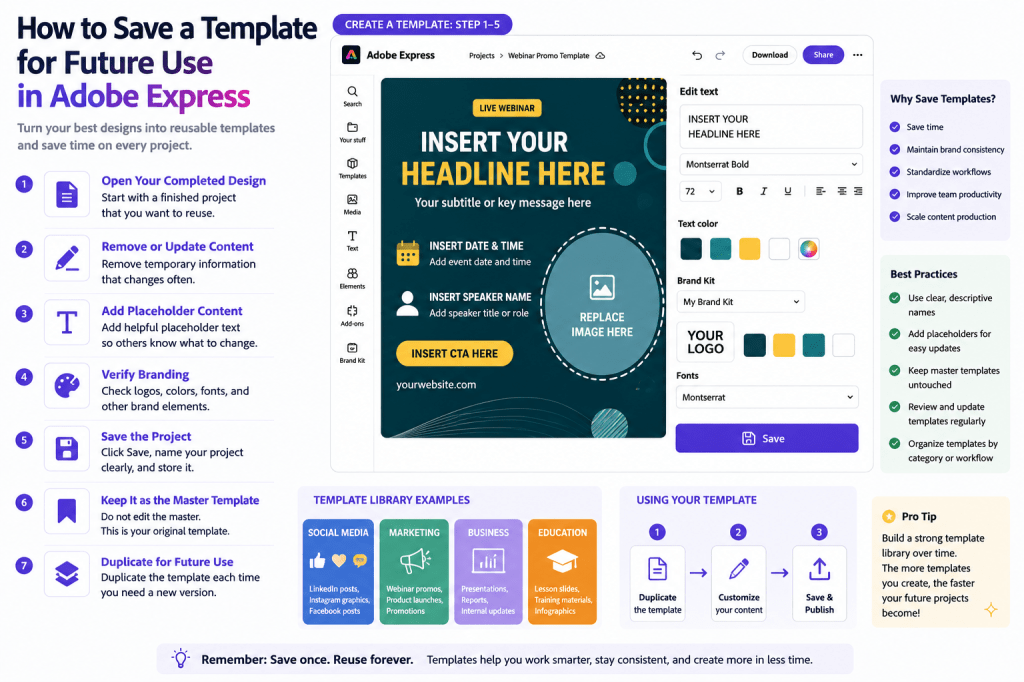
Why Save Templates?
Many Adobe Express users spend significant time creating high-quality designs.
Without templates, that work is often repeated.
Saving templates allows you to:
Reuse Proven Designs
Start from successful layouts.
Maintain Consistency
Apply the same visual standards.
Work Faster
Reduce repetitive design tasks.
Improve Team Productivity
Provide approved templates.
Scale Content Operations
Create more content with less effort.
Templates turn one design into a reusable asset.
What Types of Designs Should Become Templates?
Not every project needs to become a template.
The best candidates are designs you expect to reuse.
Examples include:
Social Media Posts
Recurring content formats.
Webinar Promotions
Repeated event campaigns.
Presentation Slides
Business communications.
Product Launch Graphics
Marketing campaigns.
Employee Announcements
Internal communications.
Educational Materials
Training and learning content.
If you expect to create something more than once, consider saving it as a template.
Step 1: Open the Completed Design
Start with a project that already contains:
Branding
Logos, fonts, and colors.
Layout Structure
Professional design framework.
Visual Hierarchy
Clear organization.
Reusable Elements
Content sections that can be updated.
The design should represent a strong foundation for future projects.
Step 2: Remove Temporary Content
Before saving the template, consider removing information that changes frequently.
Examples include:
Event Dates
Specific campaign dates.
Product Prices
Temporary offers.
Customer Names
Personalized content.
Campaign-Specific Messaging
Short-term promotions.
The goal is to create a reusable framework.
Step 3: Add Placeholder Content
Templates work best when they clearly indicate what should be updated.
Examples:
Headline Placeholder
“Insert Headline Here”
Image Placeholder
“Replace Image”
CTA Placeholder
“Insert Call-to-Action”
Date Placeholder
“Insert Event Date”
This makes future customization easier.
Step 4: Verify Branding
Before saving the template, review:
Logos
Correct version used.
Colors
Brand-approved palette.
Fonts
Approved typography.
Visual Style
Consistent appearance.
Templates should represent your official design standards.
Step 5: Save the Project
Once the design is ready:
- Save the project.
- Give it a descriptive name.
- Store it in your project library.
Examples:
Good Names
- LinkedIn Thought Leadership Template
- Webinar Registration Template
- Product Launch Template
- Customer Success Presentation Template
Clear names make templates easier to find later.
Step 6: Designate It as a Master Template
Treat the saved version as the master copy.
Avoid editing it directly.
Instead:
Keep the Original
Protect the template.
Duplicate Before Editing
Create working versions.
Preserve Standards
Maintain consistency.
This is one of the most important template management habits.
Step 7: Create a Working Copy
Whenever you need a new project:
- Locate the template.
- Duplicate it.
- Rename the duplicate.
- Customize the copy.
The master template remains unchanged.
This ensures it stays available for future use.
Building a Personal Template Library
Over time, you’ll create multiple templates.
Organize them into categories.
Social Media Templates
Examples:
- LinkedIn Posts
- Instagram Posts
- Facebook Graphics
- Pinterest Pins
Marketing Templates
Examples:
- Product Launches
- Promotions
- Event Campaigns
- Lead Generation Assets
Business Templates
Examples:
- Presentations
- Reports
- Internal Communications
Educational Templates
Examples:
- Lesson Slides
- Training Materials
- Infographics
A structured library improves efficiency.
Creating Team Template Libraries
Organizations often create shared template systems.
Benefits include:
Consistent Branding
Everyone uses approved designs.
Faster Content Creation
Employees start from existing frameworks.
Easier Onboarding
New team members create content quickly.
Better Governance
Brand standards remain protected.
Template libraries become organizational assets.
Naming Templates Effectively
Template naming matters.
Use names that immediately communicate purpose.
Good Examples
- LinkedIn Product Update Template
- Monthly Webinar Promotion Template
- Customer Success Newsletter Template
Poor Examples
- Template1
- Design Copy
- Final Version
Descriptive names improve discoverability.
Organizing Templates by Workflow
Many organizations organize templates based on business processes.
Examples:
Content Marketing
Blog graphics and promotions.
Demand Generation
Lead generation campaigns.
Customer Success
Training materials.
HR
Employee communications.
Leadership
Executive presentations.
Workflow-based organization scales well.
Best Practices for Template Management
Protect Master Templates
Never edit originals directly.
Use Consistent Naming
Improve searchability.
Review Templates Regularly
Keep designs current.
Archive Outdated Templates
Reduce clutter.
Update Brand Assets
Reflect current branding.
These habits improve long-term usability.
Common Template Mistakes
Editing the Master Copy
Can damage future workflows.
Poor Naming Standards
Makes templates difficult to locate.
Too Many Similar Templates
Creates confusion.
Outdated Branding
Reduces consistency.
No Placeholder Content
Makes templates harder to use.
Avoiding these mistakes increases template value.
Example Workflow
Imagine your company hosts monthly webinars.
Step 1
Create a webinar promotion graphic.
Step 2
Apply branding.
Step 3
Add placeholders.
Step 4
Save as Webinar Master Template.
Step 5
Duplicate each month.
Step 6
Update title, speaker, and date.
Step 7
Publish.
A task that once took hours can now take minutes.
Why Saved Templates Improve Productivity
Templates create long-term efficiency gains.
Benefits include:
Faster Production
Less design work.
Better Consistency
Unified visual identity.
Reduced Errors
Approved layouts.
Easier Collaboration
Shared standards.
Greater Scalability
Support larger content volumes.
These advantages compound over time.
Template Library Growth Strategy
As your Adobe Express usage grows, aim to build templates for:
Top 10 Recurring Content Types
Highest productivity gains.
Frequently Used Campaigns
Reduce repetitive work.
Team-Based Workflows
Improve collaboration.
Customer-Facing Content
Ensure consistency.
Internal Communications
Standardize messaging.
Over time, your template library becomes a valuable business asset.
Conclusion
Saving templates for future use is one of the smartest ways to improve productivity in Adobe Express.
By transforming successful designs into reusable assets, you can reduce repetitive work, maintain brand consistency, support team collaboration, and scale content creation more effectively.
Whether you’re a solo creator, marketer, educator, consultant, or enterprise team, a well-organized template library can become the foundation of a highly efficient content creation workflow.
The more templates you build, the faster future projects become.
Continue Learning Adobe Express
To learn more about scalable content systems, explore these guides:
- Adobe Express Content Creation: The Complete Guide
- Adobe Express Brand Management: The Complete Guide
- Adobe Express Digital Asset Management: The Complete Guide
If you’re building organization-wide content workflows, also read:
- Adobe Express Team Collaboration: The Complete Guide
- Adobe Express Workflow Automation: The Complete Guide
- Adobe Express Content Operations: The Complete Guide







 Acrobat Express Pro