As your Adobe Express content library grows, you’ll eventually need to remove outdated, unused, or duplicate projects.
Deleting projects is an important part of maintaining an organized workspace.
Whether you’re managing:
- Social media graphics
- Marketing campaigns
- Presentations
- Videos
- Flyers
- Educational content
- Team resources
keeping your project library clean can improve productivity and make it easier to find the content that matters.
In this guide, you’ll learn how to delete projects in Adobe Express, when you should delete them, and how to avoid accidentally removing important work.
Why Delete Projects?
Many users create hundreds of projects over time.
Examples include:
Draft Designs
Early concepts no longer needed.
Duplicate Projects
Multiple copies of the same asset.
Expired Campaigns
Promotions that have ended.
Outdated Content
Information that is no longer relevant.
Test Projects
Temporary experiments.
Removing unnecessary projects helps maintain an organized workspace.
When Should You Delete a Project?
Deleting projects makes sense when:
The Content Is No Longer Needed
Campaigns have ended.
Better Versions Exist
Updated assets have replaced older ones.
The Project Was Created for Testing
No future value remains.
Duplicates Exist
Only one version is required.
Your Library Has Become Cluttered
Organization becomes difficult.
Regular cleanup improves efficiency.
Before You Delete a Project
Always verify that you no longer need the content.
Ask yourself:
Is This the Final Version?
Confirm you’re deleting the correct file.
Has It Been Exported?
Download a copy if needed.
Is It Shared With Others?
Verify team members no longer require it.
Does It Contain Reusable Assets?
Consider duplicating or archiving first.
A few seconds of review can prevent accidental loss.
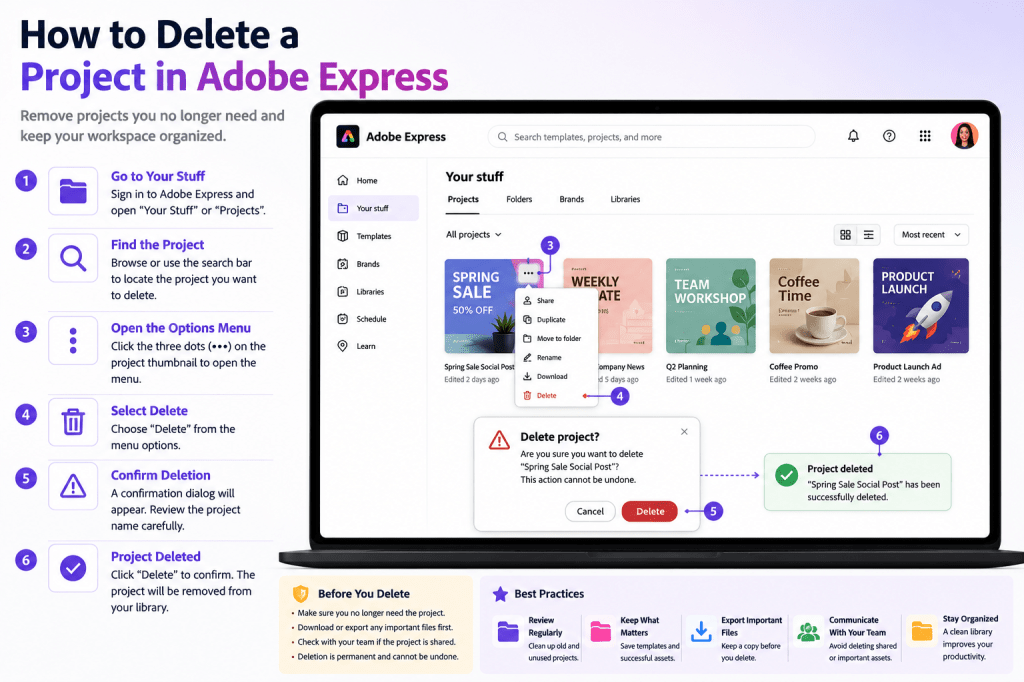
Step 1: Log In to Adobe Express
Open Adobe Express and sign in.
Navigate to:
Your Stuff
or
Projects
This is where your saved content is stored.
Step 2: Locate the Project
Find the project you want to remove.
You can use:
Recent Projects
Recently edited content.
Search
Find projects by name.
Project Library
Browse all saved assets.
Take care to select the correct project.
Step 3: Open the Project Menu
Most projects display an options menu.
Look for:
Three Dots Menu
or
More Options
Click the menu to reveal available actions.
Step 4: Select Delete
Within the menu, choose:
Delete
Adobe Express may ask for confirmation.
This safeguard helps prevent accidental deletion.
Step 5: Confirm Deletion
Review the project name carefully.
If you’re certain, confirm the action.
Adobe Express will remove the project from your library.
Understanding Project Deletion
Deleting a project generally means:
The Editable Project Is Removed
It no longer appears in your library.
Team Access Is Removed
Collaborators lose access.
Project Organization Improves
Less clutter remains.
Because deletion is significant, always double-check before proceeding.
Delete vs Duplicate vs Archive
Many users confuse these options.
Delete
Permanently remove a project.
Use when content is no longer needed.
Duplicate
Create a copy.
Use when creating variations.
Archive (If Available)
Store projects without deleting them.
Useful for older campaigns.
Choose the option that best fits your situation.
Projects You Should Usually Keep
Not every old project should be deleted.
Examples worth keeping include:
Brand Templates
Reusable company assets.
Marketing Templates
Future campaigns.
Presentation Frameworks
Reusable business materials.
Training Resources
Educational content.
Successful Campaigns
Reference materials for future work.
These assets often provide long-term value.
Projects Commonly Deleted
Examples include:
Test Designs
Created during learning.
Duplicate Versions
Unnecessary copies.
Temporary Campaigns
No future use.
Failed Concepts
Ideas that were abandoned.
Outdated Promotions
Expired offers and events.
These projects often create unnecessary clutter.
How to Organize Instead of Delete
Sometimes organization is better than removal.
Consider:
Renaming Projects
Improve discoverability.
Grouping Similar Assets
Organize campaigns.
Maintaining Naming Standards
Simplify searching.
Creating Reusable Libraries
Support future projects.
Deletion should not be the only organizational strategy.
Team Considerations
If you’re working with others:
Communicate Before Deleting
Avoid surprises.
Verify Ownership
Ensure the project belongs to your team.
Confirm Future Needs
Check whether colleagues still use the content.
Maintain Shared Templates
Protect important resources.
Team environments require additional caution.
Common Deletion Mistakes
Deleting the Wrong Project
Always verify the project name.
Removing a Master Template
Protect reusable assets.
Deleting Before Exporting
Save a copy if necessary.
Removing Shared Resources
Check with collaborators first.
Cleaning Too Aggressively
Some older projects still provide value.
Careful review helps avoid these problems.
Project Cleanup Best Practices
Schedule regular maintenance.
Examples include:
Monthly Cleanup
Remove obvious clutter.
Quarterly Review
Assess old campaigns.
Annual Archive
Evaluate long-term assets.
Template Review
Preserve reusable content.
Routine cleanup prevents project overload.
Example Workflow
Imagine a completed marketing campaign.
Step 1
Review campaign assets.
Step 2
Identify reusable templates.
Step 3
Export final deliverables.
Step 4
Delete unnecessary drafts.
Step 5
Keep successful examples.
Step 6
Organize remaining content.
This approach balances cleanup with preservation.
Benefits of Maintaining a Clean Project Library
A well-organized Adobe Express workspace offers:
Faster Searching
Find content quickly.
Better Productivity
Spend less time managing files.
Easier Collaboration
Teams locate resources faster.
Reduced Confusion
Fewer duplicate projects.
Better Content Reuse
Important assets remain visible.
Organization becomes increasingly valuable as your library grows.
Conclusion
Deleting projects in Adobe Express is a simple but important part of content management.
By removing outdated, duplicate, and unnecessary assets, you can maintain an organized workspace that supports efficient content creation and collaboration.
Before deleting any project, take a moment to verify that it is no longer needed and that reusable assets have been preserved.
With a thoughtful cleanup strategy, Adobe Express becomes easier to manage and more productive to use over time.
The next step is learning how to organize projects effectively so your content library remains structured as it grows.
Continue Learning Adobe Express
To learn more about managing content efficiently, explore these guides:
- Adobe Express Content Creation: The Complete Guide
- Adobe Express Business Productivity: The Complete Guide
- Adobe Express Digital Asset Management: The Complete Guide
If you’re managing content across teams, also read:
- Adobe Express Team Collaboration: The Complete Guide
- Adobe Express Content Operations: The Complete Guide
- Adobe Express Workflow Automation: The Complete Guide







 Acrobat Express Pro