After creating your Adobe Express account, the next step is learning how to sign in quickly and securely.
Whether you’re creating social media graphics, marketing campaigns, presentations, videos, or business content, you’ll need to access your Adobe Express dashboard regularly.
Fortunately, logging in to Adobe Express is a straightforward process that only takes a few seconds.
In this guide, you’ll learn how to log in to Adobe Express, troubleshoot common login issues, and keep your account secureWhat Is Adobe Express?
Adobe Express is Adobe’s content creation platform that helps users design:
- Social media posts
- Videos
- Presentations
- Flyers
- Posters
- Marketing materials
- Educational resources
- Business communications
Once logged in, all of your projects, templates, Brand Kits, and saved assets become available.
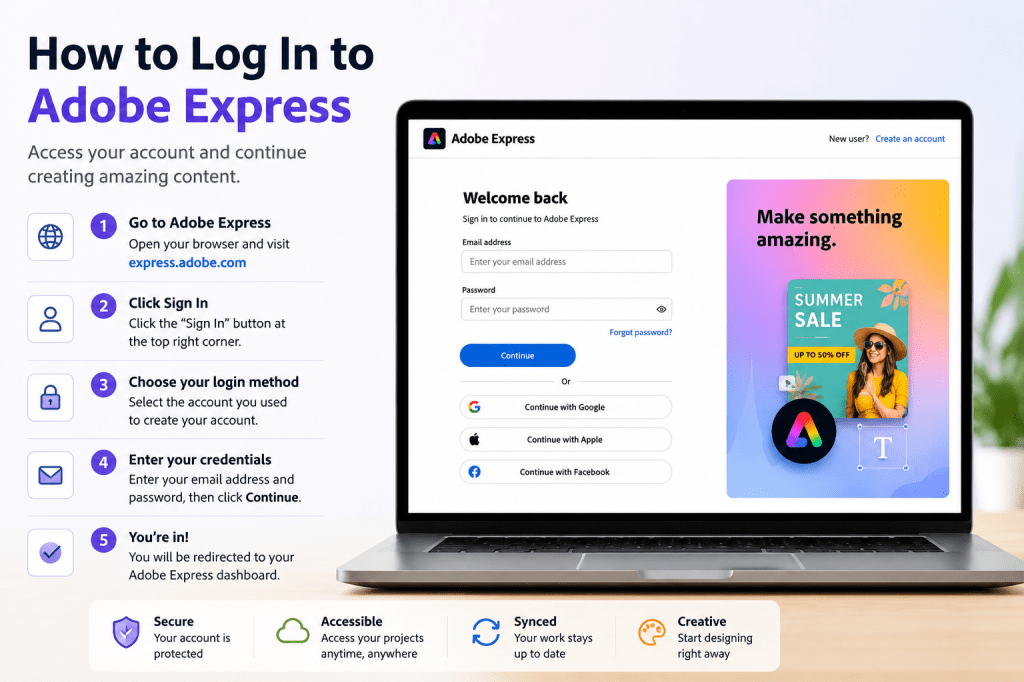
Step 1: Open Adobe Express
Launch your preferred web browser.
Navigate to the Adobe Express homepage.
You should see options such as:
- Start for Free
- Sign In
- Explore Templates
- Learn More
Locate the Sign In button, typically found in the top-right corner.
Click it to proceed.
Step 2: Choose Your Login Method
Adobe Express supports several authentication methods.
Select the same method you used when creating your account.
Common options include:
Adobe Email Account
Sign in using your Adobe email address and password.
Google Account
Continue with Google.
Apple Account
Continue with Apple.
Facebook Account
Continue with Facebook.
Existing Adobe Credentials
Use your Adobe Creative Cloud account.
Choosing the correct method helps avoid login confusion.
Step 3: Enter Your Credentials
If you’re using an Adobe account:
Email Address
Enter the email used during registration.
Password
Enter your password carefully.
Pay attention to:
- Capital letters
- Special characters
- Extra spaces
After entering your credentials, click Continue or Sign In.
Step 4: Complete Multi-Factor Authentication (If Enabled)
Adobe may request additional verification.
Examples include:
Email Verification Code
Sent to your inbox.
Authentication App Code
Generated by an authenticator application.
Mobile Verification
Confirmation through a trusted device.
Complete the verification step to access your account.
Step 5: Access Your Dashboard
After successful authentication, you’ll be taken to your Adobe Express dashboard.
Here you can access:
Recent Projects
Continue existing work.
Templates
Browse content categories.
Brand Kits
Manage company branding.
AI Features
Use Adobe Express AI tools.
Videos
Create and edit video projects.
The dashboard is your primary workspace.
Understanding the Adobe Express Home Screen
When you first sign in, you’ll typically see:
Recent Files
Previously created projects.
Recommended Templates
Popular design options.
Quick Actions
Common editing tools.
AI Tools
Content generation features.
Project Library
Organized content storage.
Spending a few minutes exploring the dashboard can improve productivity later.
Logging In on Different Devices
Adobe Express works across multiple devices.
Desktop Computers
The most common option.
Provides full workspace access.
Laptops
Ideal for content creation on the go.
Tablets
Useful for quick editing and reviews.
Mobile Devices
Convenient for social media content and simple edits.
Your projects remain connected through your Adobe account.
How to Stay Logged In
Many users prefer remaining signed in.
Benefits include:
- Faster access
- Immediate project availability
- Reduced login interruptions
When prompted, select:
Keep Me Signed In
or
Remember This Device
Only use this option on trusted personal devices.
How to Log Out of Adobe Express
When using shared computers, always sign out after use.
To log out:
- Click your profile icon.
- Open account settings.
- Select Sign Out.
This helps protect your account and projects.
Common Login Problems
Incorrect Password
If your password is not accepted:
- Check Caps Lock
- Verify keyboard language settings
- Re-enter carefully
If necessary, reset your password.
Forgot Password
Click:
Forgot Password?
Adobe will send instructions to your registered email address.
Follow the reset process.
Wrong Login Method
Many users accidentally choose:
- Adobe account instead of Google
- Google instead of Apple
- Apple instead of Adobe
Always use the same method selected during registration.
Verification Code Not Received
Check:
- Spam folder
- Promotions folder
- Junk mail folder
You can usually request a new code.
Account Locked
Multiple failed login attempts may temporarily lock access.
Wait a short period before trying again.
Security Tips for Adobe Express Accounts
Protect your account by following these recommendations.
Use a Strong Password
Avoid simple passwords.
Enable Multi-Factor Authentication
Adds extra protection.
Avoid Public Computers
Use trusted devices whenever possible.
Sign Out When Necessary
Especially on shared systems.
Update Passwords Regularly
Maintain account security.
Productivity Tips After Logging In
Once signed in:
Save Favorite Templates
Reduce future design time.
Create Brand Kits
Improve consistency.
Explore AI Features
Boost content creation speed.
Organize Projects
Maintain a clean workspace.
Learn Keyboard Shortcuts
Improve efficiency.
These habits help you get more value from Adobe Express.
Why Logging In Matters
Your Adobe account unlocks:
- Saved projects
- Brand assets
- Premium features
- AI tools
- Team collaboration
- Content libraries
Without logging in, you cannot fully use Adobe Express.
Your account becomes the center of your content creation workflow.
Conclusion
Logging in to Adobe Express is a simple process that gives you access to your projects, templates, Brand Kits, AI tools, and content libraries.
Whether you’re using Adobe Express for marketing, business communications, education, customer success, or personal projects, secure access to your account ensures a smooth content creation experience.
Once you’re comfortable signing in, the next step is learning how to navigate the Adobe Express dashboard and begin creating your first projects.
Continue Learning Adobe Express
To learn more about creating content efficiently with Adobe Express, explore these guides:
- Adobe Express Content Creation: The Complete Guide
- Adobe Express AI Productivity: The Complete Guide
- Adobe Express Business Productivity: The Complete Guide
If you’re building workflows and working with teams, also read:
- Adobe Express Team Collaboration: The Complete Guide
- Adobe Express Workflow Automation: The Complete Guide
- Adobe Express Enterprise Workflows: The Complete Guide








