Once you’ve created an Adobe Express account and logged in successfully, you’ll arrive at the Adobe Express Dashboard.
The dashboard is your central workspace.
From here, you can:
- Create new projects
- Access templates
- Manage Brand Kits
- Open recent designs
- Use AI-powered tools
- Organize content
- Manage team resources
Learning how to navigate the dashboard efficiently can save time and improve productivity.
In this guide, we’ll walk through every major section of the Adobe Express dashboard and explain how to use it effectively.
What Is the Adobe Express Dashboard?
The dashboard is the home screen of Adobe Express.
Think of it as your content creation control center.
It provides access to:
- Projects
- Templates
- AI tools
- Brand assets
- Videos
- Collaboration features
Most of your daily work in Adobe Express begins here.
Accessing the Dashboard
To open the dashboard:
- Sign in to Adobe Express.
- Wait for the home screen to load.
- You will automatically be directed to your dashboard.
The layout may evolve as Adobe introduces new features, but the core sections generally remain the same.
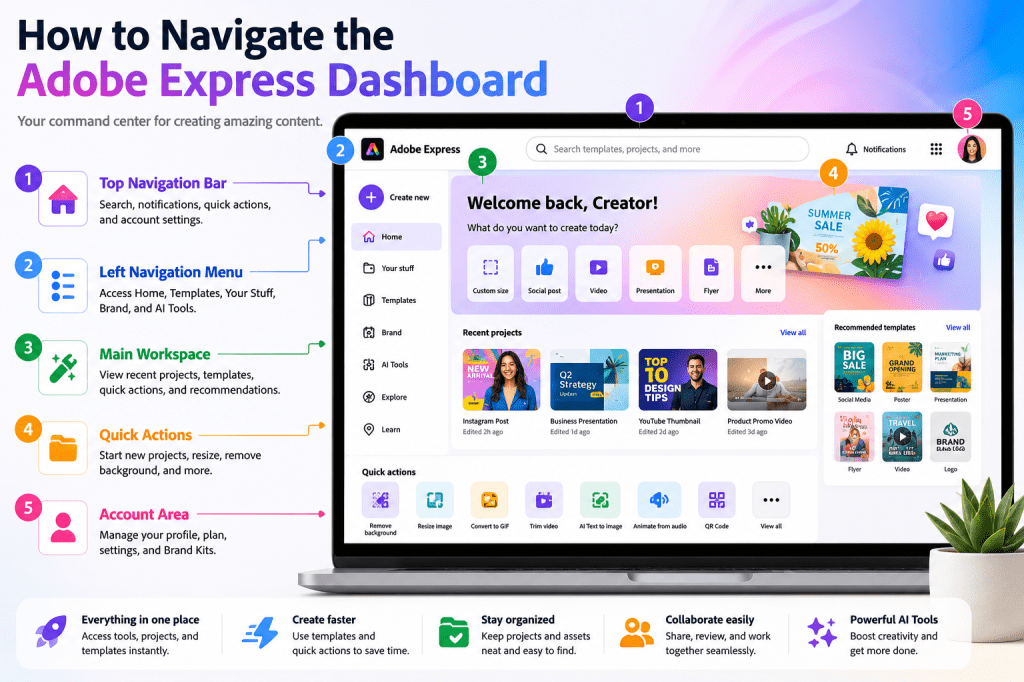
Dashboard Overview
Most Adobe Express dashboards contain:
Top Navigation Bar
Quick access to search and account settings.
Left Navigation Menu
Primary content categories.
Main Workspace
Projects, templates, and recommendations.
Account Area
Profile and subscription settings.
Understanding these sections helps you work more efficiently.
The Top Navigation Bar
At the top of the dashboard, you’ll typically find:
Search
Locate templates, projects, and assets.
Notifications
View Adobe updates and alerts.
Profile Icon
Access account settings.
Quick Actions
Start common tasks quickly.
The search feature is especially useful as your content library grows.
The Left Navigation Menu
The left sidebar acts as the main navigation system.
Common options include:
Home
Return to the dashboard.
Your Stuff
Access saved projects.
Templates
Browse design templates.
Brand
Manage Brand Kits.
Learn
Educational resources and tutorials.
AI Tools
Access Adobe Express AI features.
These categories may vary slightly depending on your subscription.
Understanding the Home Screen
The Home section is designed to help you start creating quickly.
You may see:
Recent Projects
Continue unfinished work.
Recommended Templates
Popular designs.
Trending Content
Current design ideas.
Quick Actions
Frequently used tools.
This section helps reduce the time needed to begin new projects.
Using the Search Function
The search bar is one of the most useful features in Adobe Express.
You can search for:
Templates
Find design layouts.
Projects
Locate saved work.
Graphics
Discover assets.
Videos
Find video templates.
AI Tools
Access specific features.
As your content library expands, search becomes increasingly valuable.
Exploring Templates
Templates are one of Adobe Express’s biggest strengths.
The Templates section contains:
Social Media Templates
Posts and stories.
Business Templates
Marketing materials.
Presentation Templates
Slides and decks.
Flyers and Posters
Print-ready designs.
Video Templates
Content creation shortcuts.
Templates help you create professional content faster.
Understanding “Your Stuff”
The Your Stuff section contains your personal content library.
Examples include:
Saved Projects
Current and completed designs.
Uploaded Assets
Images and files.
Videos
Created content.
Shared Projects
Team resources.
This area becomes your primary content repository.
Managing Brand Kits
If you have access to Brand Kits, you’ll find them in the Brand section.
Brand Kits typically include:
Logos
Approved company branding.
Colors
Brand palettes.
Fonts
Approved typography.
Design Elements
Reusable assets.
Brand Kits help maintain consistency across all content.
Using Adobe Express AI Tools
Adobe Express includes several AI-powered capabilities.
Examples include:
AI Text Generation
Create written content.
AI Image Generation
Generate visuals.
Design Assistance
Improve layouts.
Content Ideas
Support creativity.
AI tools can significantly accelerate content creation.
Starting a New Project
There are multiple ways to begin creating.
Common options include:
Blank Canvas
Start from scratch.
Template
Modify an existing design.
AI-Generated Content
Use Adobe AI features.
Imported File
Upload existing content.
Choose the option that best fits your project.
Understanding Quick Actions
Quick Actions provide shortcuts to common tasks.
Examples may include:
Remove Background
Image editing.
Resize Content
Adapt designs.
Convert Files
Format changes.
Crop Images
Visual adjustments.
Quick Actions save time on routine tasks.
Organizing Your Projects
As you create more content, organization becomes important.
Consider:
Naming Projects Clearly
Easy identification.
Grouping Similar Content
Campaign management.
Maintaining Consistent Structure
Improved productivity.
Good organization reduces search time later.
Dashboard Tips for Beginners
New users should focus on:
Learning Templates First
Fastest way to create content.
Exploring AI Features
Increase productivity.
Creating a Brand Kit
Maintain consistency.
Saving Projects Properly
Prevent confusion.
Using Search Frequently
Find resources quickly.
These habits make Adobe Express easier to use.
Dashboard Tips for Businesses
Organizations should:
Standardize Templates
Improve efficiency.
Build Brand Kits
Maintain visual consistency.
Organize Content Libraries
Support collaboration.
Establish Naming Conventions
Simplify asset management.
Train Teams
Improve adoption.
These practices support scalable content operations.
Common Dashboard Questions
Why Can’t I Find My Projects?
Check:
- Your Stuff
- Search
- Shared Projects
Projects are rarely deleted accidentally.
Why Don’t I See Brand Kits?
Some Brand Kit features may require Premium access.
Where Are AI Features Located?
AI tools are often accessible through:
- Main dashboard
- Quick Actions
- Project creation screens
Adobe regularly updates feature locations.
Can I Customize the Dashboard?
Adobe Express offers limited customization, but organization methods help create a personalized workflow.
Productivity Workflow Example
A simple daily workflow might look like:
Step 1
Open Dashboard.
Step 2
Review Recent Projects.
Step 3
Search for Templates.
Step 4
Create Content.
Step 5
Apply Brand Kit.
Step 6
Save and Organize Projects.
This process helps maintain efficiency.
Conclusion
The Adobe Express Dashboard is the foundation of your content creation workflow.
By understanding how to navigate the dashboard, locate projects, use templates, manage Brand Kits, access AI tools, and organize assets, you can dramatically improve your productivity.
Whether you’re creating social media content, marketing campaigns, educational materials, business presentations, or videos, the dashboard serves as your central command center.
The more familiar you become with its features, the faster and more effectively you’ll be able to create professional content.
Continue Learning Adobe Express
To learn more about building professional content workflows, explore these guides:
- Adobe Express Content Creation: The Complete Guide
- Adobe Express AI Productivity: The Complete Guide
- Adobe Express Business Productivity: The Complete Guide
If you’re creating content for teams and organizations, also read:
- Adobe Express Team Collaboration: The Complete Guide
- Adobe Express Workflow Automation: The Complete Guide
- Adobe Express Enterprise Workflows: The Complete Guide








