Every design, social media graphic, presentation, flyer, video, or marketing asset in Adobe Express begins with a project.
Understanding how to start a new project correctly is one of the first skills every Adobe Express user should learn.
Whether you’re creating content for:
- Social media
- Marketing campaigns
- Business communications
- Education
- Internal communications
- Customer success
Adobe Express makes it easy to get started.
In this guide, you’ll learn how to create a new project, choose the right project type, use templates, and set yourself up for a productive content creation workflow.
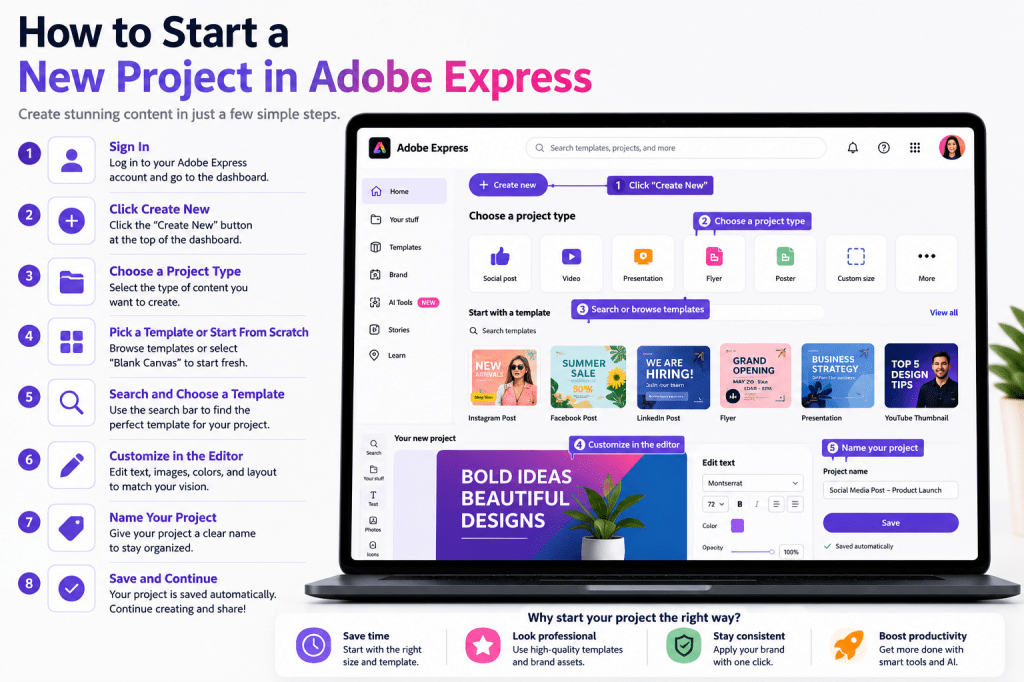
What Is a Project in Adobe Express?
A project is any piece of content you create within Adobe Express.
Examples include:
Social Media Graphics
Instagram, LinkedIn, Facebook, Pinterest, and X content.
Videos
Marketing videos and educational content.
Presentations
Business and classroom presentations.
Flyers
Print and digital promotional materials.
Posters
Event and marketing graphics.
Custom Designs
Projects built from scratch.
Every asset you create is stored as a project in your Adobe Express account.
Why Starting Correctly Matters
Many users jump directly into designing.
However, choosing the correct project type from the beginning helps:
Save Time
Less rework later.
Improve Quality
Templates provide structure.
Maintain Consistency
Use approved formats.
Increase Productivity
Start with the right foundation.
A few extra seconds at the beginning can save significant time later.
Step 1: Log In to Adobe Express
Before creating a project:
- Open Adobe Express.
- Sign in to your account.
- Navigate to the dashboard.
Once you’re on the dashboard, you’re ready to begin.
Step 2: Locate the Create Button
On most Adobe Express dashboards, you’ll find a button labeled:
Create New
or
Create
This button is typically visible near the top of the dashboard.
Click it to open project creation options.
Step 3: Choose a Project Type
Adobe Express offers multiple project categories.
Common options include:
Social Post
For social media content.
Video
For video projects.
Presentation
For slide decks.
Flyer
For promotions and events.
Poster
For larger visual content.
Custom Size
For unique dimensions.
Select the option that best matches your objective.
Step 4: Decide Between a Template or Blank Project
You generally have two choices.
Option 1: Use a Template
Recommended for most users.
Benefits include:
- Faster creation
- Professional layouts
- Built-in design structure
- Reduced effort
Templates are especially useful for beginners.
Option 2: Start from Scratch
Choose a blank canvas if:
- You have a unique vision
- You need custom dimensions
- You already have a design concept
This option provides maximum flexibility.
Step 5: Search for Templates
If you choose a template, use the search bar.
Popular searches include:
LinkedIn Post
Professional content.
Instagram Story
Social engagement.
Business Presentation
Corporate communication.
Event Flyer
Promotional content.
Marketing Campaign
Advertising materials.
Adobe Express provides thousands of options.
Step 6: Select Your Template
Browse available templates.
When choosing one, consider:
Audience
Who will see this content?
Goal
What action should they take?
Brand Fit
Does it align with your organization?
Content Type
Does the structure support your message?
Once you’ve found a suitable template, click it.
Step 7: Open the Editor
After selecting a template or blank canvas, Adobe Express opens the editor.
This is where you’ll:
- Add text
- Insert images
- Modify colors
- Adjust layouts
- Create designs
The editor becomes your primary workspace.
Step 8: Name Your Project
Before making major changes, give your project a meaningful name.
Examples:
Good Names
- LinkedIn Product Launch Q3
- Employee Onboarding Flyer
- Webinar Promotion Campaign
Poor Names
- Untitled Project
- Test
- Design1
Clear names make future organization easier.
Step 9: Apply Your Brand Kit (Optional)
If you use Adobe Express Premium, you may have access to Brand Kits.
Brand Kits can automatically apply:
Logos
Company branding.
Colors
Approved palettes.
Fonts
Standard typography.
Design Elements
Consistent visual assets.
This helps maintain professional consistency.
Step 10: Begin Creating
Now you’re ready to customize your project.
Common tasks include:
Editing Text
Replace placeholder content.
Changing Images
Add your own visuals.
Adjusting Colors
Match brand standards.
Adding Icons
Enhance communication.
Modifying Layouts
Improve visual flow.
Adobe Express allows real-time editing.
Creating Different Types of Projects
Let’s look at some common use cases.
Social Media Projects
Popular formats include:
- LinkedIn posts
- Instagram posts
- Facebook graphics
- Pinterest pins
- YouTube thumbnails
Templates often provide the fastest path.
Marketing Projects
Examples include:
- Campaign graphics
- Product launches
- Event promotions
- Lead magnets
Adobe Express excels at marketing content.
Business Projects
Common examples:
- Presentations
- Internal communications
- Team announcements
- Visual reports
Professional templates simplify creation.
Educational Projects
Examples include:
- Classroom presentations
- Learning resources
- Infographics
- Student materials
Visual communication improves learning outcomes.
Video Projects
Adobe Express also supports:
Marketing Videos
Promotional content.
Training Videos
Employee education.
Social Videos
Audience engagement.
Product Demonstrations
Feature explanations.
Video projects follow a similar creation process.
Tips for Starting Better Projects
Start with a Template
Templates reduce design effort.
Define Your Goal First
Know what success looks like.
Use Brand Kits
Maintain consistency.
Name Projects Immediately
Avoid confusion later.
Keep Designs Simple
Simple designs often perform better.
Common Mistakes When Starting Projects
Choosing the Wrong Format
Start with the correct project type.
Ignoring Templates
Templates save time.
Forgetting Branding
Consistency matters.
Poor Project Names
Organization becomes difficultStarting Without a Goal
Designs become less effective.
Example Workflow
Imagine you’re creating a LinkedIn graphic.
Step 1
Click Create New.
Step 2
Select Social Post.
Step 3
Search LinkedIn Template.
Step 4
Choose a design.
Step 5
Apply Brand Kit.
Step 6
Customize content.
Step 7
Save project.
Within minutes, you have professional content ready to publish.
Benefits of Starting Projects in Adobe Express
Adobe Express offers several advantages:
Speed
Templates accelerate creation.
Simplicity
Easy-to-use interface.
Flexibility
Support for many content types.
Branding
Brand Kits improve consistency.
AI Integration
Additional productivity features.
These capabilities make Adobe Express suitable for both individuals and teams.
Conclusion
Starting a new project in Adobe Express is simple, but taking the right approach can dramatically improve your workflow.
By selecting the appropriate project type, choosing effective templates, applying branding, and organizing your work properly, you can create professional content faster and with less effort.
Whether you’re building social media graphics, marketing campaigns, presentations, videos, or educational resources, Adobe Express provides a flexible foundation for efficient content creation.
The next step is learning how to save, manage, and organize your growing collection of projects.
Continue Learning Adobe Express
To learn more about creating professional content workflows, explore these guides:
- Adobe Express Content Creation: The Complete Guide
- Adobe Express AI Productivity: The Complete Guide
- Adobe Express Visual Communication: The Complete Guide
If you’re creating content at scale, also read:
- Adobe Express Team Collaboration: The Complete Guide
- Adobe Express Workflow Automation: The Complete Guide
- Adobe Express Content Operations: The Complete Guide







 Acrobat Express Pro