Introduction
Creating content in Adobe Express is only part of the process.
Once you’ve built a social media graphic, presentation, video, flyer, or marketing asset, you’ll want to make sure your work is saved properly.
Fortunately, Adobe Express is designed to make saving projects simple.
In many cases, Adobe Express automatically saves your work while you edit, helping prevent lost progress.
However, understanding how project saving works can help you stay organized, protect important content, and manage growing content libraries more effectively.
In this guide, you’ll learn how to save projects, organize them, rename them, and avoid common mistakes.
Why Saving Projects Matters
Every project represents time and effort.
Saving projects properly helps you:
Protect Your Work
Prevent accidental loss.
Stay Organized
Manage growing content libraries.
Reuse Content
Repurpose assets later.
Collaborate with Teams
Share projects efficiently.
Improve Productivity
Reduce time spent searching for files.
Good project management starts with good saving habits.
Does Adobe Express Save Automatically?
In most cases, yes.
Adobe Express includes automatic saving functionality.
As you edit content, changes are typically saved automatically to your account.
This means:
- Less risk of losing work
- No constant manual saving
- Better workflow continuity
However, it is still important to understand how project storage works.
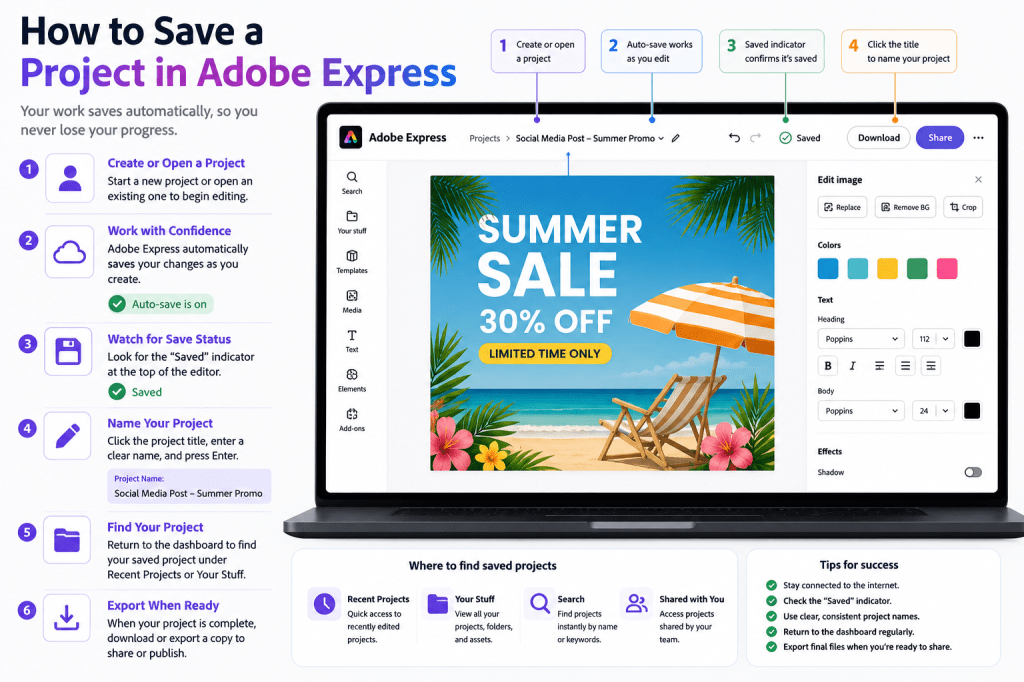
Step 1: Create or Open a Project
Before saving, you need a project.
Examples include:
- Social media graphics
- Videos
- Flyers
- Presentations
- Posters
- Marketing assets
Open an existing project or create a new one.
Step 2: Verify You’re Logged In
Projects are linked to your Adobe account.
Always confirm that you’re signed in.
If you’re not logged in:
- Projects may not save properly
- Access may be limited
- Work may not sync across devices
Your Adobe account acts as the storage location for your projects.
Step 3: Watch for Auto-Save Indicators
Adobe Express often displays indicators showing that work has been saved.
Examples may include:
Saved
Project successfully stored.
Saving
Changes currently being processed.
Auto-Saved
Recent changes have been recorded.
Pay attention to these indicators when making significant edits.
Step 4: Name Your Project
One of the most important project management steps is naming your project correctly.
Good Examples
- LinkedIn Product Launch Campaign
- Employee Onboarding Presentation
- Summer Promotion Flyer
- Customer Success Webinar
Poor Examples
- Untitled
- Test
- New Project
- Design1
Clear names improve organization and searchability.
Step 5: Rename Projects When Needed
Project goals sometimes change.
To rename a project:
- Open the project.
- Locate the project title.
- Click the title.
- Enter a new name.
- Confirm changes.
This helps keep your content library organized.
Step 6: Return to the Dashboard
After editing, return to the dashboard.
You should see your project listed under:
Recent Projects
Recently edited assets.
Your Stuff
Saved content library.
Shared Projects
Collaborative assets.
This confirms your project has been stored.
Understanding Project Storage
Adobe Express stores projects within your account.
This allows you to:
Access Projects Later
Continue editing anytime.
Use Multiple Devices
Work from desktop, laptop, or tablet.
Collaborate with Teams
Share assets more easily.
Reuse Content
Repurpose existing projects.
Cloud-based storage is one of Adobe Express’s biggest advantages.
How to Find Saved Projects
As your content library grows, finding projects becomes important.
Recent Projects
Recently edited content.
Search
Locate projects quickly.
Your Stuff
View all stored assets.
Shared Content
Access collaborative projects.
Using clear project names makes searching easier.
Saving Different Types of Projects
Adobe Express uses the same basic saving system for most content.
Social Media Projects
Examples include:
- LinkedIn posts
- Instagram graphics
- Facebook content
- Pinterest pins
Projects are automatically stored within your account.
Presentations
Presentation projects save similarly and can be reopened for future updates.
Marketing Materials
Examples include:
- Flyers
- Posters
- Campaign graphics
These remain accessible from your project library.
Videos
Video projects are also saved to your Adobe account.
Video files may take longer to process depending on size.
Saving Before Exporting
Many users confuse:
Saving
Stores the editable project.
Exporting
Creates a downloadable file.
Always remember:
A saved project remains editable.
An exported file is typically a finished version.
Both serve different purposes.
How to Export a Saved Project
Once your project is saved:
- Open the project.
- Click Download or Export.
- Choose a format.
- Save the exported file to your device.
Your original project remains available for future editing.
Organization Tips for Large Content Libraries
As your content grows, organization becomes critical.
Use Clear Naming Conventions
Example:
Marketing-Q3-LinkedIn-Launch
Group Similar Projects
Organize by campaign.
Create Consistent Structures
Use predictable naming systems.
Update Old Projects
Archive outdated content.
Reuse Existing Assets
Avoid unnecessary duplication.
Good organization saves significant time.
Common Saving Problems
Project Not Appearing
Try:
- Refreshing the dashboard
- Checking Recent Projects
- Using Search
Changes Not Saving
Verify:
- Internet connection
- Adobe account login
- Browser stability
Can’t Find a Project
Search using:
- Project name
- Keywords
- Recent activity
Clear naming conventions help prevent this issue.
Accidentally Created Multiple Versions
This often occurs when projects are duplicated repeatedly.
Use naming standards to avoid confusion.
Best Practices for Saving Projects
Name Projects Immediately
Avoid untitled files.
Verify Auto-Save Status
Check indicators occasionally.
Organize Regularly
Prevent content clutter.
Save Reusable Assets
Build a content library.
Export Final Versions
Keep finished files available when needed.
These habits improve long-term productivity.
Example Workflow
Imagine you’re creating a LinkedIn post.
Step 1
Create the project.
Step 2
Name it:
LinkedIn Product Launch Graphic.
Step 3
Customize the design.
Step 4
Verify auto-save status.
Step 5
Return to dashboard.
Step 6
Export final version.
This simple workflow keeps projects organized and accessible.
Benefits of Adobe Express Project Saving
Adobe Express offers several advantages:
Automatic Saving
Reduces risk.
Cloud Storage
Access from multiple devices.
Project Reuse
Repurpose content.
Team Collaboration
Share projects easily.
Improved Productivity
Spend less time managing files.
These capabilities help support efficient content creation workflows.
Conclusion
Saving projects in Adobe Express is largely automatic, but understanding how project storage works can dramatically improve your content management process.
By naming projects clearly, organizing assets effectively, monitoring save status, and understanding the difference between saving and exporting, you can build a more efficient and scalable content creation workflow.
Whether you’re creating social media graphics, videos, presentations, educational materials, or marketing campaigns, proper project management helps ensure your work remains accessible, reusable, and easy to find.
The next step is learning how to duplicate projects so you can create variations without starting from scratch.
Continue Learning Adobe Express
To learn more about efficient content workflows, explore these guides:
- Adobe Express Content Creation: The Complete Guide
- Adobe Express Business Productivity: The Complete Guide
- Adobe Express Knowledge Sharing: The Complete Guide
If you’re managing content across teams, also read:
- Adobe Express Team Collaboration: The Complete Guide
- Adobe Express Workflow Automation: The Complete Guide
- Adobe Express Digital Asset Management: The Complete Guide








