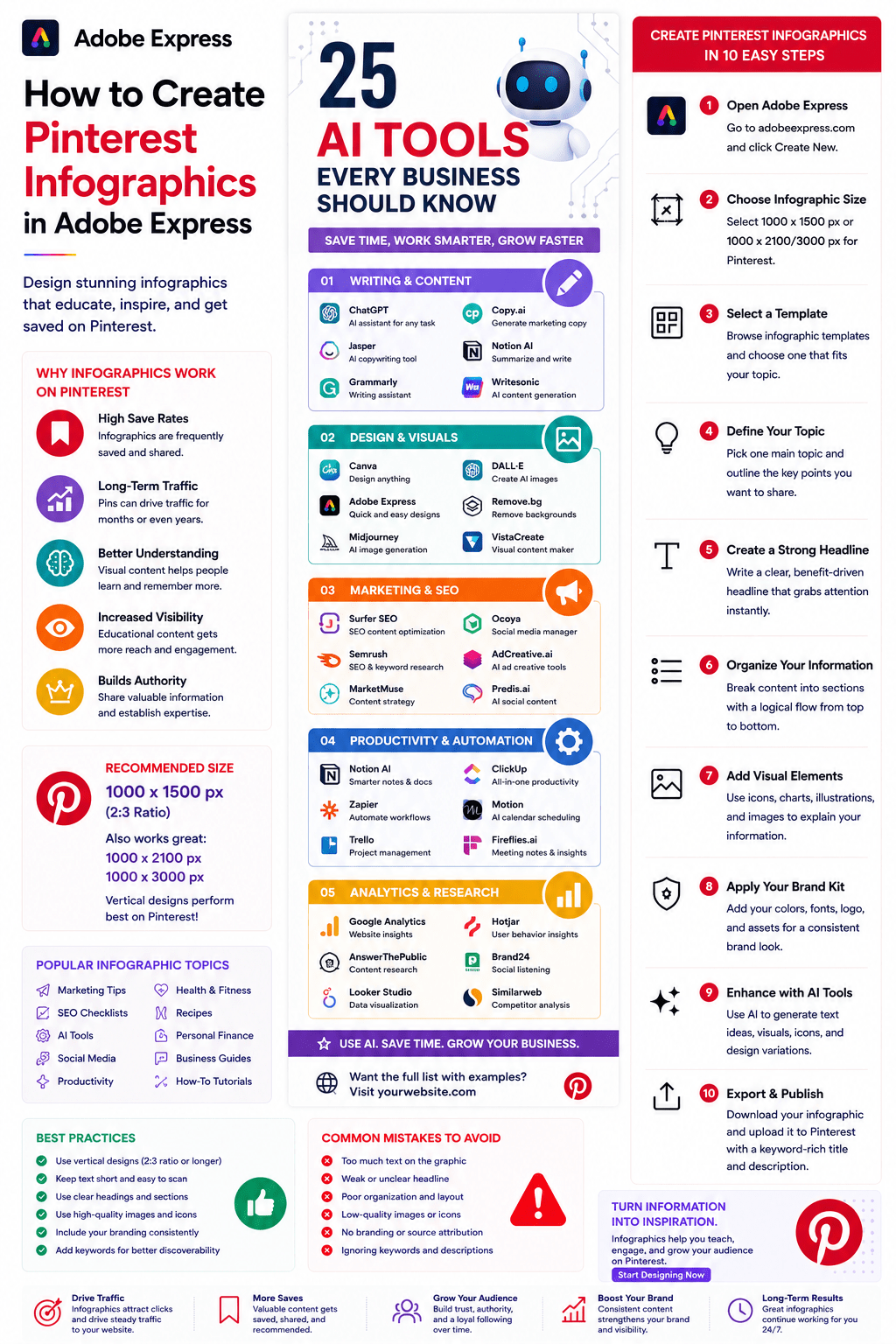
Pinterest and infographics are a perfect match.
Pinterest users actively search for educational, visual, and information-rich content, making infographics one of the most effective formats for generating saves, shares, backlinks, and long-term website traffic.
Whether you’re a blogger, marketer, educator, consultant, affiliate marketer, small business owner, or content creator, infographics can help transform complex information into easy-to-understand visual content.
Adobe Express makes infographic creation simple by providing:
- Infographic templates
- Brand Kits
- AI-powered design tools
- Adobe Stock assets
- Professional typography
- Fast export workflows
In this guide, you’ll learn how to create Pinterest infographics using Adobe Express.
Why Infographics Work on Pinterest
Pinterest functions as a visual search engine.
Users often save educational content for later.
Benefits include:
Higher Save Rates
Infographics are frequently bookmarked.
Increased Website Traffic
Users click through to learn more.
Better Information Retention
Visual learning improves understanding.
Long-Term Visibility
Pins can generate traffic for years.
Strong Authority Building
Educational content establishes expertise.
Infographics remain one of Pinterest’s highest-performing content formats.
What Is a Pinterest Infographic?
A Pinterest infographic is a vertical graphic that combines:
Text
Visuals
Statistics
Icons
Charts
Educational Content
The goal is to communicate information quickly and clearly.
Best Topics for Pinterest Infographics
Examples include:
Marketing Tips
SEO Checklists
AI Tools
Social Media Strategies
Health and Fitness
Recipes
Personal Finance
Productivity Systems
Business Frameworks
Educational Guides
Choose topics that benefit from visual explanation.
Recommended Pinterest Infographic Size
Pinterest favors vertical content.
Popular infographic dimensions include:
1000 × 1500 Pixels
1000 × 2100 Pixels
1000 × 3000 Pixels
Longer infographics allow more detailed information.
Adobe Express supports all of these formats.
Step 1: Open Adobe Express
Sign in to Adobe Express.
From the dashboard:
Click Create New
or
Search Infographic Templates
Adobe Express includes many infographic-ready layouts.
Step 2: Choose an Infographic Template
Browse categories such as:
Business
Marketing
Education
Health
Technology
Statistics
Templates provide a professional starting point.
Step 3: Define Your Main Topic
Successful infographics focus on one topic.
Examples:
10 AI Tools Every Business Should Know
Beginner’s SEO Checklist
Social Media Content Workflow
Productivity Framework
Avoid covering too many subjects at once.
Step 4: Create a Strong Headline
Examples:
The Ultimate SEO Checklist
25 AI Tools for Marketers
Content Creation Workflow Explained
10 Steps to Better Productivity
The headline should immediately communicate value.
Step 5: Organize Information into Sections
Break content into logical blocks.
Example:
Introduction
Key Statistics
Main Concepts
Action Steps
Summary
Structured information improves readability.
Step 6: Add Visual Elements
Use:
Icons
Charts
Illustrations
Adobe Stock Images
Screenshots
AI-Generated Visuals
Visuals help explain information.
Step 7: Apply Your Brand Kit
Adobe Express Brand Kits simplify branding.
Apply:
Brand Colors
Brand Fonts
Logos
Design Assets
Consistent branding builds recognition.
Step 8: Use Adobe Express AI Features
Adobe Express AI tools can generate:
Headlines
Visual Concepts
Content Summaries
Design Variations
Supporting Graphics
AI can significantly reduce production time.
Step 9: Optimize for Pinterest SEO
Pinterest is a search platform.
Include:
Keywords
Topic Descriptions
Search-Friendly Headings
Relevant Categories
SEO increases discoverability.
Step 10: Export and Publish
When complete:
Save Project
Download Infographic
Create Variations
Upload to Pinterest
Your infographic is ready.
Creating Educational Infographics
Examples:
How-To Guides
Tutorials
Frameworks
Learning Resources
Industry Concepts
Educational content performs exceptionally well.
Creating Statistics Infographics
Examples:
Market Research
Survey Results
Industry Trends
Data Visualizations
Benchmark Reports
Statistics build authority.
Creating Checklist Infographics
Examples:
SEO Checklist
Content Marketing Checklist
Website Launch Checklist
Product Launch Checklist
Checklists are highly saveable.
Creating Comparison Infographics
Examples:
Adobe Express vs Canva
SEO vs PPC
AI Tools Comparison
Marketing Platforms Comparison
Comparison content often generates strong engagement.
Creating Process Infographics
Examples:
Content Creation Workflow
Product Development Process
Marketing Funnel
Customer Journey
Process graphics simplify complex concepts.
Best Practices for Pinterest Infographics
Focus on One Topic
Avoid information overload.
Use Strong Headings
Improve readability.
Keep Sections Organized
Create logical flow.
Use Visual Hierarchy
Guide readers through the content.
Maintain Consistent Branding
Strengthen recognition.
These practices improve results.
Common Infographic Mistakes
Too Much Text
Overwhelms readers.
Weak Headline
Reduces engagement.
Poor Organization
Makes information difficult to follow.
Low-Quality Visuals
Looks unprofessional.
Missing Branding
Misses recognition opportunities.
Avoiding these mistakes improves performance.
Example Workflow
Imagine creating an infographic:
Topic
25 AI Tools Every Business Should Know
Section 1
Introduction
Section 2
Writing Tools
Section 3
Design Tools
Section 4
Marketing Tools
Section 5
Productivity Tools
Section 6
Summary
Section 7
Visit Our Website
This format works extremely well on Pinterest.
Why Adobe Express Is Ideal for Pinterest Infographics
Adobe Express combines:
Professional Templates
Brand Management
AI Design Tools
Easy Editing
Flexible Layouts
Fast Export
This makes it one of the easiest tools for infographic creation.
Conclusion
Pinterest infographics are among the most effective content formats for generating traffic, building authority, and educating audiences.
By combining templates, Brand Kits, AI-powered tools, and streamlined workflows, Adobe Express enables creators and businesses to create professional infographics quickly and consistently.
Whether you’re sharing statistics, tutorials, frameworks, checklists, or educational content, Adobe Express provides everything needed to create high-performing Pinterest infographics.
Continue Learning Adobe Express
To learn more about Pinterest content creation, explore these guides:
- How to Create Pinterest Pins in Adobe Express
- How to Create Pinterest Idea Pins in Adobe Express
- Adobe Express for Social Media: The Complete Guide
For advanced content workflows, also read:
- Adobe Express Content Calendars: The Complete Guide
- Adobe Express Marketing Automation: The Complete Guide
- Adobe Express Workflow Automation: The Complete Guide







 Acrobat Express Pro