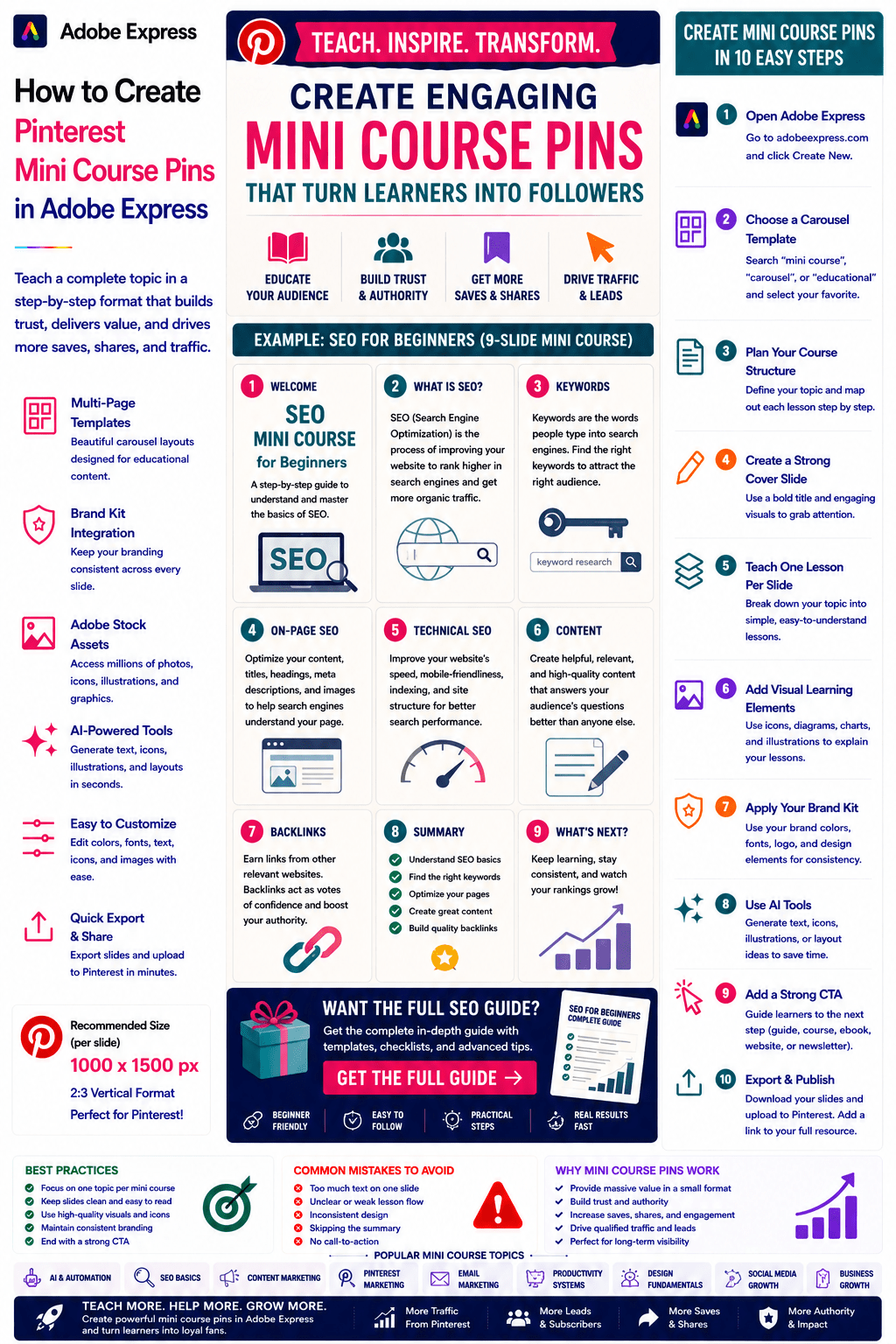
Pinterest users love educational content, but sometimes a single pin isn’t enough to explain a concept properly.
That’s where Mini Course Pins come in.
A Pinterest Mini Course Pin is a structured series of slides that teaches a complete lesson in a concise, easy-to-follow format. Instead of simply sharing a tip or statistic, a mini course walks users through a process step by step.
These pins are ideal for:
- Building authority
- Growing an audience
- Generating leads
- Promoting courses
- Driving website traffic
- Increasing saves and shares
Adobe Express makes it easy to create professional Pinterest Mini Course Pins using:
- Multi-page templates
- Brand Kits
- AI-powered design tools
- Adobe Stock assets
- Educational layouts
- Fast export workflows
In this guide, you’ll learn how to create Pinterest Mini Course Pins using Adobe Express.
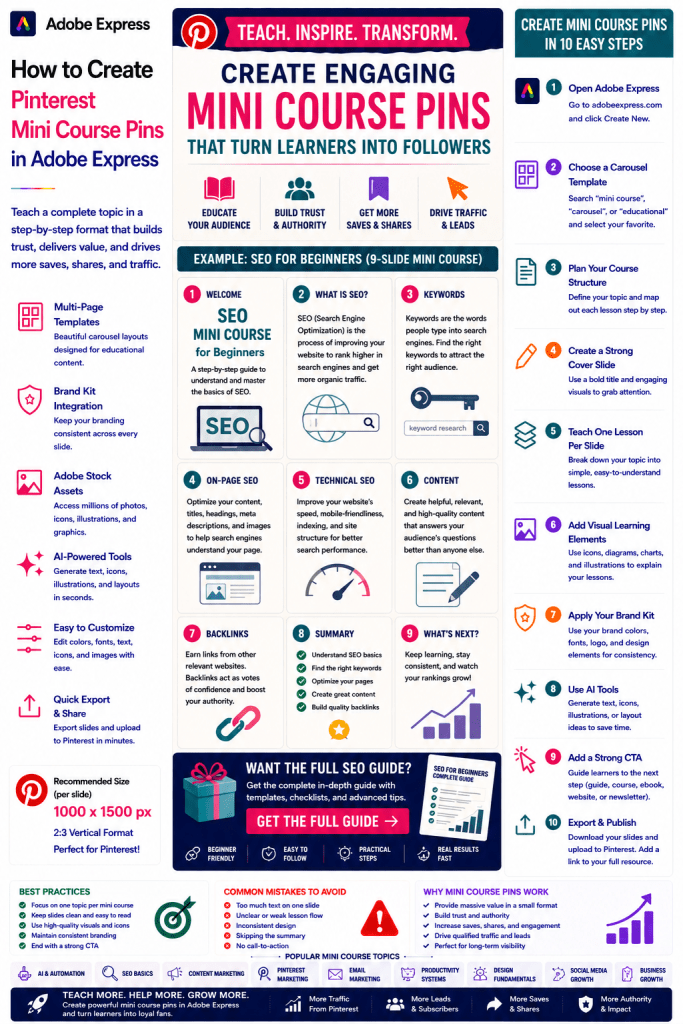
What Are Pinterest Mini Course Pins?
Mini Course Pins are educational Pinterest carousels that teach a complete lesson.
Examples include:
SEO for Beginners
How AI Agents Work
Content Marketing Fundamentals
Introduction to Pinterest Marketing
Email Marketing Basics
Building Your First Website
Figma Design Principles
Productivity Systems Explained
Think of them as condensed online courses delivered through Pinterest slides.
Why Mini Course Pins Perform Well
Pinterest users actively seek learning resources.
Benefits include:
High Save Rates
Users often return later.
Increased Engagement
Multiple slides encourage interaction.
Builds Trust
Teaching demonstrates expertise.
Lead Generation
Mini courses naturally lead into premium offers.
Authority Building
Educational content positions you as a subject-matter expert.
Mini Course Pins often outperform traditional promotional pins.
Best Topics for Mini Course Pins
Popular categories include:
Artificial Intelligence
Marketing
SEO
Blogging
Social Media
Business
Productivity
Design
Personal Finance
Career Development
Choose topics that can be taught in a clear sequence.
Recommended Pinterest Mini Course Format
Pinterest recommends:
1000 × 1500 Pixels Per Slide
Consistent Design Across Slides
Clear Progression
Mobile-Friendly Layouts
Adobe Express supports multi-page workflows perfectly.
Step 1: Define the Learning Outcome
Ask:
What Should the User Learn?
Examples:
Learn Keyword Research
Understand AI Agents
Build a Content Strategy
Create Better Pinterest Pins
A clear outcome improves engagement.
Step 2: Plan the Course Structure
A simple structure might include:
Slide 1
Course Cover
Slide 2
Learning Objective
Slide 3
Lesson One
Slide 4
Lesson Two
Slide 5
Lesson Three
Slide 6
Lesson Four
Slide 7
Lesson Five
Slide 8
Summary
Slide 9
Call-to-Action
This format works exceptionally well.
Step 3: Open Adobe Express
Sign in to Adobe Express.
From the dashboard:
Click Create New
or
Search Carousel Templates
Choose a multi-slide educational template.
Step 4: Create a Strong Cover Slide
Examples:
SEO Mini Course
AI Agents Explained
Beginner’s Guide to Content Marketing
Pinterest Marketing Fundamentals
The cover slide determines whether users continue reading.
Step 5: Teach One Concept Per Slide
Keep each lesson focused.
Examples:
One Framework
One Strategy
One Principle
One Step
One Insight
Avoid overcrowding slides.
Step 6: Use Visual Learning Elements
Examples:
Diagrams
Icons
Screenshots
Process Flows
Charts
Illustrations
Visual learning improves retention.
Step 7: Apply Your Brand Kit
Adobe Express Brand Kits simplify consistency.
Apply:
Brand Colors
Brand Fonts
Logos
Design Assets
Consistent branding builds recognition.
Step 8: Use Adobe Express AI Features
Adobe Express AI tools can generate:
Educational Graphics
Lesson Headlines
Visual Concepts
Layout Variations
Supporting Illustrations
AI can dramatically accelerate content production.
Step 9: End With a Strong CTA
Examples:
Read the Full Guide
Join the Newsletter
Download the Ebook
Watch the Tutorial
Visit Our Website
Enroll in the Full Course
A CTA converts engagement into action.
Step 10: Export and Publish
When complete:
Save Project
Export Slides
Create Variations
Upload to Pinterest
Your Mini Course Pin is ready.
Creating AI Mini Course Pins
Examples:
AI Agent Fundamentals
Prompt Engineering Basics
RAG Explained
Machine Learning Concepts
AI education remains one of the fastest-growing content categories.
Creating Marketing Mini Course Pins
Examples:
Content Marketing
Lead Generation
Email Marketing
Conversion Optimization
Marketing lessons perform exceptionally well.
Creating SEO Mini Course Pins
Examples:
Keyword Research
On-Page SEO
Technical SEO
Internal Linking
SEO education attracts highly engaged audiences.
Creating Design Mini Course Pins
Examples:
Typography Basics
Color Theory
UX Fundamentals
Design Systems
Visual subjects work perfectly on Pinterest.
Creating Business Mini Course Pins
Examples:
Startup Fundamentals
Productivity Systems
Team Leadership
Business Models
Professional audiences value structured educational content.
Best Practices for Mini Course Pins
Focus on One Topic
Keep the lesson clear.
Use Simple Language
Improve accessibility.
Keep Slides Consistent
Maintain a professional appearance.
Use Visuals Generously
Improve understanding.
End With a CTA
Encourage the next step.
These practices improve performance.
Common Mini Course Mistakes
Teaching Too Much
Creates information overload.
Poor Lesson Structure
Confuses users.
Weak Cover Slide
Reduces engagement.
Inconsistent Design
Looks unprofessional.
No CTA
Misses lead generation opportunities.
Avoiding these mistakes improves results.
Example Workflow
Imagine creating a mini course.
Topic
SEO for Beginners
Slides
- Cover
- What Is SEO?
- Keywords
- On-Page SEO
- Technical SEO
- Content
- Backlinks
- Summary
- CTA
This structure is highly effective on Pinterest.
Why Adobe Express Is Ideal for Mini Course Pins
Adobe Express combines:
Multi-Page Templates
Brand Management
AI Design Tools
Educational Layouts
Easy Editing
Fast Export
Pinterest-Friendly Formats
This makes it one of the easiest platforms for creating educational content.
Conclusion
Pinterest Mini Course Pins are highly effective for teaching concepts, building authority, increasing engagement, generating leads, and driving traffic.
By combining templates, Brand Kits, AI-powered tools, and streamlined workflows, Adobe Express enables creators and businesses to create professional mini course content quickly and consistently.
Whether you’re teaching AI, marketing, SEO, business, design, or productivity skills, Adobe Express provides everything needed to create high-performing Mini Course Pins.
Continue Learning Adobe Express
To learn more about Pinterest marketing, explore these guides:
- How to Create Pinterest Educational Carousel Pins in Adobe Express
- How to Create Pinterest Industry Trend Pins in Adobe Express
- How to Create Pinterest Statistics and Data Pins in Adobe Express
For advanced content workflows, also read:
- Adobe Express Marketing Automation: The Complete Guide
- Adobe Express Content Calendars: The Complete Guide
- Adobe Express Workflow Automation: The Complete Guide








