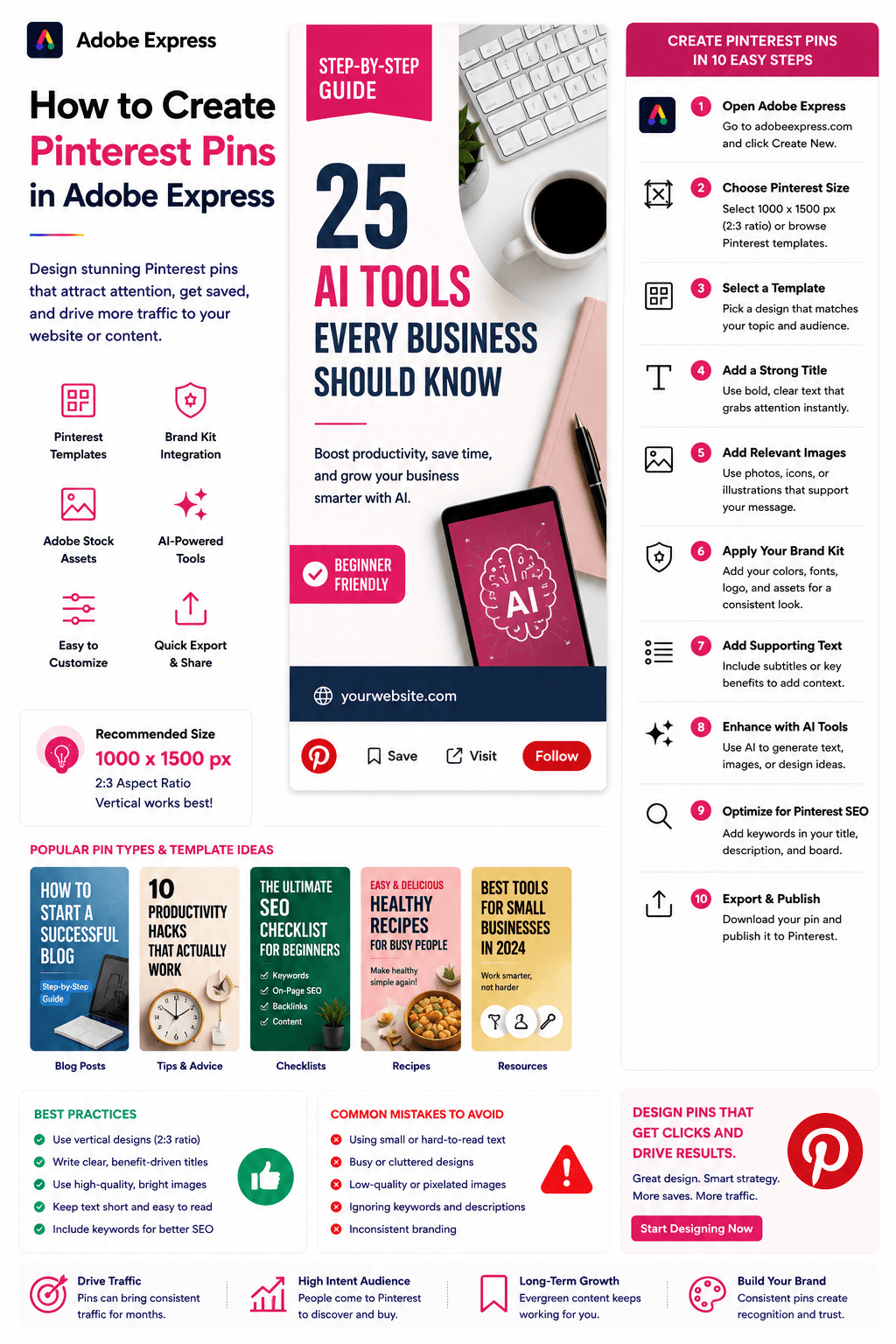
Pinterest is one of the most powerful platforms for driving long-term website traffic, promoting products, growing audiences, and building brand awareness.
Unlike many social networks where content disappears quickly, Pinterest pins can continue generating views, clicks, and engagement for months or even years after publication.
Whether you’re a blogger, marketer, small business owner, affiliate marketer, creator, educator, or e-commerce brand, Adobe Express makes it easy to create professional Pinterest pins that attract attention and encourage clicks.
Adobe Express provides:
- Pinterest-specific templates
- Brand Kits
- AI-powered design tools
- Adobe Stock assets
- Professional typography
- Fast export workflows
In this guide, you’ll learn how to create Pinterest pins using Adobe Express.
Why Pinterest Pins Matter
Pinterest functions more like a visual search engine than a traditional social network.
Benefits include:
Long-Term Traffic
Pins can remain discoverable for years.
Higher Purchase Intent
Many users actively search for solutions and products.
Website Growth
Pins can drive consistent referral traffic.
Brand Awareness
Visual content increases visibility.
Content Repurposing
One article can generate multiple pins.
Pinterest remains one of the best platforms for evergreen content marketing.
Types of Pinterest Pins
Adobe Express supports many pin formats.
Examples include:
Blog Promotion Pins
Product Pins
Educational Pins
Infographic Pins
Recipe Pins
Affiliate Marketing Pins
Tutorial Pins
Quote Pins
Checklist Pins
Lead Magnet Pins
Choose a format that matches your goals.
Recommended Pinterest Pin Size
Pinterest recommends a vertical format.
Popular dimensions include:
1000 × 1500 Pixels
2:3 Aspect Ratio
Adobe Express provides Pinterest templates already optimized for this format.
Step 1: Open Adobe Express
Sign in to Adobe Express.
From the dashboard:
Click Create New
or
Search Pinterest Templates
Adobe Express includes numerous Pinterest-ready layouts.
Step 2: Choose a Pinterest Template
Browse categories such as:
Blogging
Business
Marketing
Education
Lifestyle
Food
E-commerce
Templates provide a professional starting point.
Step 3: Create a Strong Pin Title
The title is often the most important element.
Examples:
25 AI Tools Every Business Should Know
Beginner’s Guide to SEO
How to Build a Brand Kit
10 Productivity Hacks That Actually Work
Pinterest users scan quickly, so clarity matters.
Step 4: Use Large Typography
Pinterest is highly visual.
Focus on:
Bold Headlines
Clear Fonts
Strong Contrast
Readable Layouts
The title should be visible immediately.
Step 5: Add Relevant Images
Visuals play a critical role.
Options include:
Product Photos
Blog Images
Adobe Stock Assets
Illustrations
Screenshots
AI-Generated Images
Choose visuals that support the topic.
Step 6: Apply Your Brand Kit
Adobe Express Brand Kits simplify branding.
Apply:
Brand Colors
Brand Fonts
Logos
Design Assets
Consistent branding improves recognition.
Step 7: Add Supporting Text
Include additional context.
Examples:
Step-by-Step Guide
Free Checklist Included
Beginner Friendly
Complete Tutorial
Download Template
Supporting text improves click-through rates.
Step 8: Use Adobe Express AI Features
Adobe Express AI tools can help generate:
Headlines
Marketing Copy
Pin Variations
Images
Design Concepts
AI can significantly speed up content creation.
Step 9: Optimize for Pinterest SEO
Pinterest is a search platform.
Include:
Relevant Keywords
Clear Topic Descriptions
Search-Friendly Titles
Descriptive Text
SEO optimization increases discoverability.
Step 10: Export and Publish
When complete:
Save Project
Download Pin
Create Variations
Upload to Pinterest
Your pin is ready.
Creating Blog Promotion Pins
One of the most common Pinterest uses.
Include:
Blog Title
Supporting Visual
Brand Elements
Call-to-Action
Blog pins drive website traffic.
Creating Product Pins
Highlight:
Product Benefits
Product Images
Pricing Information
Special Offers
Purchase CTA
Product pins support e-commerce growth.
Creating Educational Pins
Examples:
Tutorials
Guides
Checklists
Frameworks
Learning Resources
Educational content performs exceptionally well.
Creating Infographic Pins
Include:
Statistics
Key Takeaways
Process Steps
Visual Explanations
Pinterest users frequently save infographics.
Creating Affiliate Marketing Pins
Examples:
Product Reviews
Comparison Guides
Recommended Tools
Resource Lists
Buying Guides
Affiliate marketers often create multiple pin variations.
Best Practices for Pinterest Pins
Use Vertical Designs
Pinterest favors vertical content.
Create Strong Headlines
Improve click-through rates.
Use High-Quality Images
Professional visuals perform better.
Stay Consistent
Maintain branding.
Include Keywords
Improve search visibility.
These practices improve results.
Common Pinterest Pin Mistakes
Small Text
Difficult to read on mobile.
Weak Headlines
Fail to attract clicks.
Poor Image Quality
Looks unprofessional.
Missing Keywords
Reduces discoverability.
No Branding
Misses recognition opportunities.
Avoiding these mistakes improves performance.
Example Workflow
Imagine promoting an article.
Step 1
Choose a Pinterest template.
Step 2
Apply Brand Kit.
Step 3
Add headline:
“25 AI Tools Every Business Should Know”
Step 4
Insert supporting image.
Step 5
Add keyword-rich subtitle.
Step 6
Review mobile view.
Step 7
Export.
Step 8
Publish to Pinterest.
The process often takes less than 15 minutes.
Why Adobe Express Is Ideal for Pinterest Marketing
Adobe Express combines:
Professional Templates
Brand Management
AI Design Tools
Easy Editing
Fast Export
This makes it one of the easiest tools for Pinterest content creation.
Conclusion
Pinterest remains one of the most effective platforms for driving traffic, generating leads, and promoting evergreen content.
By combining templates, Brand Kits, AI-powered tools, and streamlined workflows, Adobe Express enables creators and businesses to create high-performing Pinterest pins quickly and consistently.
Whether you’re promoting blog posts, products, tutorials, or lead magnets, Adobe Express provides everything needed to create effective Pinterest content.
Continue Learning Adobe Express
To learn more about social media content creation, explore these guides:
- How to Create X Posts in Adobe Express
- How to Create X Thread Cover Graphics in Adobe Express
- How to Create LinkedIn Posts in Adobe Express
For advanced marketing workflows, also read:
- Adobe Express Content Calendars: The Complete Guide
- Adobe Express Marketing Automation: The Complete Guide
- Adobe Express for Social Media: The Complete Guide








